
Censor, Blur & Pixelate Images Online - Free & Private
Easily censor, blur, or pixelate sensitive parts of your photos online. Our free tool lets you hide faces, license plates, and confidential text directly in your browser. 100% private, no server uploads required.
Censor Image Pro
Hide confidential parts of your photos with blur, pixelation, or solid colour. Everything runs locally in your browser.
or click "Select Image" on the left
Supports JPG, PNG, WEBP
Mouse wheel to zoom in/out
Space + drag, or middle-click to pan
R / B / E / H for modes
1 / 2 / 3 for effects
[ / ] to change brush size
Hold C to compare with original
Censor, Blur & Pixelate Images Online: Free & Private
Easily censor, blur, or pixelate sensitive parts of your photos online. Our free tool lets you hide faces, license plates, and confidential text directly in your browser. 100% private, no server uploads required.
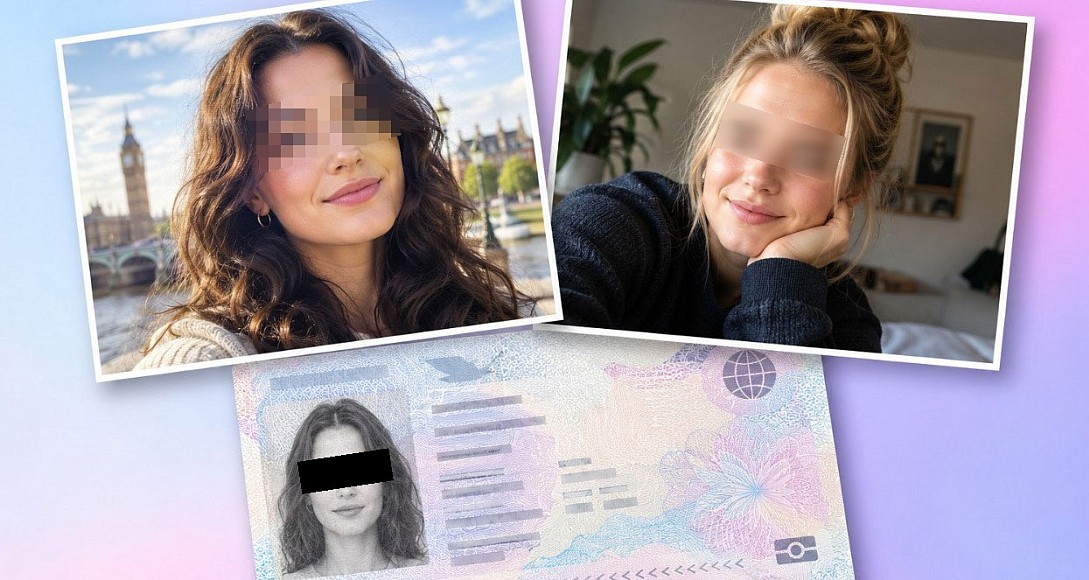
Censor Image Pro
Hide confidential parts of your photos with blur, pixelation, or solid colour. Everything runs locally in your browser.
Censor, Blur and Pixelate Images Online for Free
If you need to censor an image online, blur faces in photos, or pixelate sensitive information, this free tool does it all directly in your browser. No downloads, no sign-ups, and absolutely no uploads to any server. Your photos never leave your device.
Whether you are a journalist protecting a source, a parent sharing family photos, or a business redacting confidential documents, our online image censor tool gives you professional-grade control with zero privacy risk.
Every pixel stays on your machine. This tool runs 100% client-side using your browser's built-in canvas engine. Nothing is uploaded anywhere.
Why Use an Online Image Censor Tool?
Sharing photos publicly comes with real privacy risks. A single unedited image can expose faces, home addresses, license plates, credit card numbers, or internal company data. A reliable image redaction tool lets you remove or obscure that information before you hit send.
Common reasons people search for a photo censor tool:
- Protecting the identity of minors in social media posts
- Hiding license plates before listing a car for sale
- Redacting personal addresses on shipping labels or documents
- Blurring faces in crowd photos for blog articles or news stories
- Obscuring screen content in screenshots shared on forums
- Removing sensitive medical or financial details from images
How to Censor an Image Online in Three Steps
| Step | Action | Details |
|---|---|---|
| 1 | Upload your image | Drag and drop or click to select any JPG, PNG, or WEBP file |
| 2 | Choose your effect | Pick from blur, pixelate, or solid color fill |
| 3 | Apply and export | Draw over the area, then download or copy to clipboard |
That is it. No complicated menus, no watermarks, no file size limits.
Three Powerful Censor Effects Explained
Blur
The blur image online effect softens the selected area so details become unreadable while the overall shape and color tones remain visible. This is the most popular choice for blurring faces in photos or blurring license plates because it looks natural and professional. You can adjust the blur radius from 1 to 60 to control exactly how much detail gets removed.
Pixelate
The pixelate image online effect replaces the selected area with large color blocks, creating a classic mosaic look. This is the go-to method for TV broadcasts and news media when they need to pixelate faces or hide text in images. Adjust the block size from 2 to 80 pixels. Larger blocks mean less visible detail.
Solid Color Fill
The fill option covers the selected area with a single solid color of your choice. Use the built-in color picker or the eyedropper tool to sample a color directly from your image. Opacity can be adjusted from 0% to 100%. This is ideal when you want to completely redact text in an image or black out entire sections of a document.
Four Drawing Modes for Precision Control
| Mode | Shortcut | Best For |
|---|---|---|
| Rectangle | R | Quickly covering rectangular areas like text blocks, ID cards, or UI elements |
| Brush | B | Painting over irregular shapes like faces, hands, or handwritten notes |
| Eraser | E | Restoring original pixels if you accidentally covered the wrong area |
| Pan | H | Navigating around zoomed-in images without applying any effect |
The brush tool includes adjustable size, hardness, opacity, and a unique shape control. You can morph the brush stamp from a perfect circle to a sharp square (0 to 100 percent), giving you the exact geometry needed to match straight edges or organic curves seamlessly without accidental overspray.
Global Apply and Transform Tools
For workflows that require broader adjustments, the tool includes powerful structural controls:
- Global Apply Toggle: Instantly apply your selected effect (with your current radius, block size, or color settings) to the entire image with a single click. This is ideal for uniform blurring, applying a consistent tint, or full-document redaction without drawing multiple selection boxes.
- Transform Panel: Rotate your image 90 degrees clockwise or counter-clockwise, or flip it horizontally and vertically. All transformations are processed instantly and locally, and they fully integrate with the 40-step undo history.
Professional Features You Will Not Find in Other Free Tools
Most free online photo censor tools offer a single blur slider and nothing else. This tool was built to handle real-world redaction workflows.
Professional editors trust tools that give them undo history, zoom precision, and non-destructive previews. This tool delivers all three without requiring a paid subscription.
Full feature comparison:
| Feature | This Tool | Typical Free Alternatives |
|---|---|---|
| Blur, Pixelate, and Fill effects | Yes | Usually blur only |
| Brush, Eraser, and Rectangle modes | Yes | Rarely |
| Adjustable brush shape (Circle to Square) | Yes | No |
| Global Apply to entire image | Yes | No |
| Adjustable blur radius and pixel block size | Yes | Fixed or limited |
| Custom fill color with eyedropper | Yes | No |
| Undo and Redo history (up to 40 steps) | Yes | No |
| Zoom up to 500% with minimap navigator | Yes | No |
| Image rotation and flipping | Yes | No |
| Brightness, contrast, saturation adjustments | Yes | No |
| Hold-to-compare with original | Yes | No |
| Mask overlay to preview censored regions | Yes | No |
| Export as PNG or JPG | Yes | Sometimes |
| Copy directly to clipboard | Yes | No |
| 100% client-side, no server uploads | Yes | Often upload to server |
| Keyboard shortcuts for every action | Yes | No |
How Privacy Works: 100% Client-Side Processing
When you use this free image censor tool, your photo is processed entirely inside your web browser using the HTML5 Canvas API. Here is what that means in practice:
- Your image is never uploaded to any server
- Your image is never stored in any database
- No third-party service can access your photos
- The tool works offline once the page has loaded
- Closing the tab permanently deletes all data from memory
If privacy is your top concern when you need to redact sensitive information from a photo, a client-side tool is the only truly safe option. Server-based tools always carry some level of data exposure risk.
Frequently Asked Questions
Can I blur faces in photos for free? Yes. Select the blur or pixelate effect, choose the brush or rectangle mode, and draw over any face in your image. There is no cost, no watermark, and no account required.
Can I censor the entire image at once? Yes. Enable the "Apply to Whole Image" toggle in the Effect panel. The tool will instantly process the entire photo with your chosen effect and current settings, saving you from drawing multiple selection boxes.
Can I rotate or flip the image before exporting? Yes. The built-in Transform panel allows you to rotate the image 90 degrees in either direction or flip it horizontally and vertically. This is processed locally and preserves your undo history.
Does this tool work on mobile devices? Yes. The tool is fully responsive and works on phones, tablets, and desktops. All features including zoom, pan, brush, and export are available on touch screens.
What image formats are supported? You can upload and censor JPG, PNG, and WEBP files. You can export your censored image as either PNG or JPG.
Is there a file size limit? There is no hard file size limit. Because everything runs locally in your browser, the only constraint is your device's available memory. Most modern devices can handle images up to 50 megapixels without any issues.
Can I undo my changes? Yes. The tool supports up to 40 levels of undo and redo. You can also reset the image to its original state at any time with a single click.
How do I pixelate just part of an image? Select the pixelate effect, then use the rectangle mode to draw a box around the specific area you want to pixelate. Only the pixels inside your selection will be affected.
Who Uses This Tool?
Journalists and reporters use it to protect the identities of confidential sources and witnesses in published photographs.
Real estate agents use it to blur house numbers, street signs, and neighbor properties before listing photos go live.
E-commerce sellers use it to hide serial numbers, barcodes, or personal return addresses on product photos.
HR departments use it to redact employee social security numbers, signatures, and private medical details from scanned documents.
Parents use it to blur the faces of other children in school event photos before posting to social media.
Developers and designers use it to censor API keys, passwords, tokens, and internal URLs in screenshots shared on Stack Overflow, GitHub, or documentation.
Tips for Effective Image Redaction
Use a high blur radius for text. When you need to redact text in an image, set the blur radius to at least 30. Lower values can leave enough detail for someone to guess the original characters.
Use pixelation for faces. A block size of 14 or higher is generally sufficient to make a face unrecognizable while keeping the photo looking intentional rather than damaged.
Match brush shape to the target. Use the brush shape slider to morph your cursor from a circle to a square. A square or rounded-square brush is perfect for censoring straight-edged text boxes, documents, or UI elements without accidental overspray.
Combine fill with opacity. For legal documents, a solid black fill at 100% opacity is the safest choice. For social media, a semi-transparent fill at 70% opacity looks more natural.
Always double-check with the compare button. Hold the compare button or press C to instantly toggle between your censored version and the original. This ensures you have not missed any sensitive areas.
Use the mask overlay for complex edits. Toggle the mask overlay to see a red highlight over every pixel you have modified. This makes it easy to spot gaps in your coverage before you export.
Start Censoring Your Images Now
No registration. No watermarks. No uploads. Just open the tool above, drag in your image, and start blurring, pixelating, or redacting in seconds. Your privacy is guaranteed because your photo never leaves your browser.
Bookmark this page so you always have a free online image censor tool ready whenever you need to share a photo safely.