

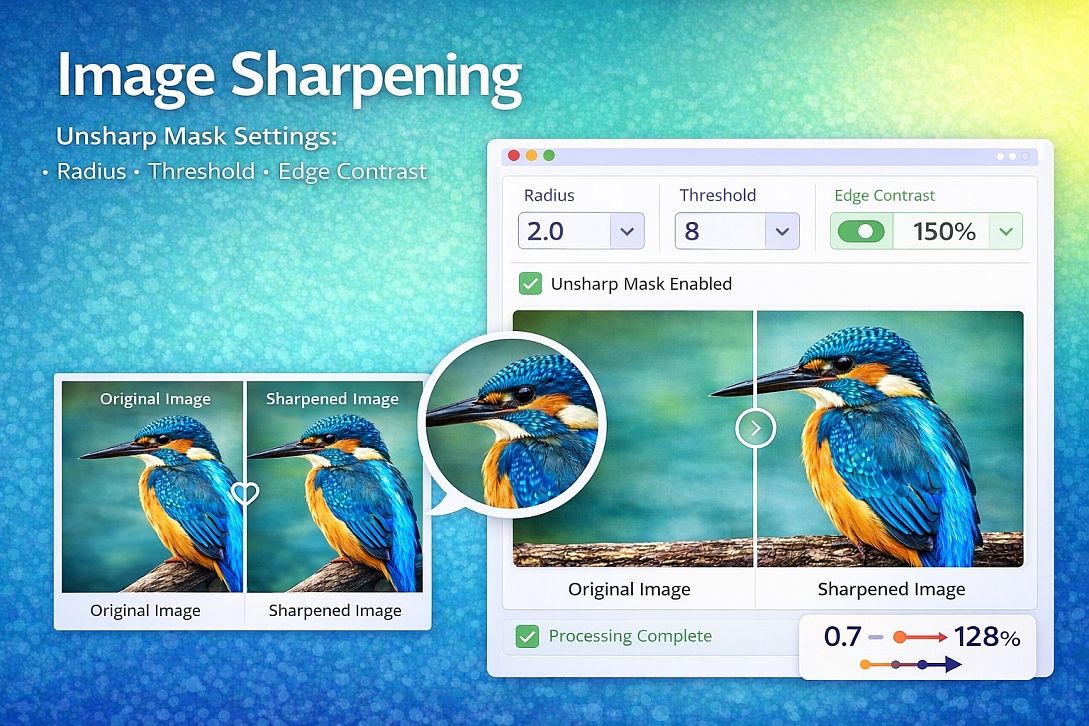
Image Sharpening: Unsharp Mask, Radius, Threshold & Edge Contrast
Digital images lose sharpness from multiple causes: lens defocus, motion blur, sensor limitations, compression artifacts, and resampling interpolation. Sharpening does not restore lost information. It increases local contrast along edges to create the perception of greater detail. Understanding the underlying convolution operations separates effective sharpening from artifact generation.
Summary of core requirements for image sharpening:
- Edge detection: The algorithm must identify which pixels belong to boundaries between light and dark regions
- Contrast amplification: Edge pixels receive a proportional increase in difference from their neighbors
- Artifact suppression: Noise and smooth gradients must not receive the same amplification as genuine edges
- Parameter control: Amount (intensity), radius (affected area), and threshold (minimum contrast to sharpen)
How Unsharp Masking Actually Works
Despite the name, unsharp masking produces sharpening. The method subtracts a blurred (unsharp) version of the image from the original. The mathematical operation:
Sharpened = Original + (Original - Blurred) * Amount
The difference between the original and blurred represents high-frequency information: edges and fine details. Adding this difference back amplifies those frequencies.
Standard parameters operate on specific effects:
| Parameter | What It Controls | Typical Range | Result of Incorrect Setting |
|---|---|---|---|
| Amount | Intensity of edge amplification | 0.5 to 2.0 | Too low: no visible effect; Too high: halos |
| Radius | Size of edge neighborhood considered | 0.5 to 3.0 pixels | Too low: noise amplification; Too high: obvious halos |
| Threshold | Minimum brightness change to sharpen | 0 to 10 | Too low: noise sharpened; Too high: weak edges ignored |
Radius determines the Gaussian blur kernel size applied to create the unsharp version. Larger radii affect thicker edges but produce visible halos. Smaller radii catch fine detail but amplify sensor noise.
The Difference Between Sharpening and Resolution Enhancement
Sharpening does not increase actual resolution. A 640x480 image sharpened remains 640x480. The perception of clarity improves, but no new detail appears. This distinction matters when users expect to "fix" heavily blurred or out-of-focus images.
Resolution enhancement (super-resolution) uses different methods: interpolation with edge guidance, generative models, or multiple frame combination. Sharpening operates on a single image and changes only contrast relationships, not pixel count.
Real-world limits: If a face in a photograph is 20 pixels wide and unrecognizable, no amount of sharpening produces recognizable features. The information simply does not exist in the capture.
Five Practical Use Cases for Image Sharpening
Product Photography for E-Commerce
Specific constraints: Images must appear crisp at thumbnail and zoomed sizes. Over-sharpening creates halos around product edges, which customers interpret as poor quality. White backgrounds require careful threshold settings to avoid sharpening noise in the background.
Common mistakes: Applying the same sharpening amount to all product images. Dark products on white backgrounds produce the most visible halos. Using radius values above 1.5 pixels on images under 1000px wide.
Practical advice: Start with amount 1.0, radius 0.8, threshold 2. Test on a white background region first. If the background shows texture or noise, increase the threshold to 4 or 5. For product galleries, process all images with identical settings after validating on three representative samples.
Text Extraction from Screenshots or Documents
Specific constraints: Text edges must remain crisp without creating halos that make characters appear doubled. Compression artifacts around letters need suppression before sharpening. The final output may feed into OCR systems.
Common mistakes: Sharpening before denoising. JPEG artifacts around text sharpen into false edges, confusing OCR. Using a radius above 0.5 pixels, which thickens character strokes unnaturally.
Practical advice: Apply mild denoising (median filter, 1-pixel radius) first. Use amount 1.2, radius 0.5, threshold 1. For OCR preparation, also convert to black and white after sharpening using an adaptive threshold. Test a single page before batch processing.
Restoring Old or Compressed Family Photos
Specific constraints: Source images contain JPEG compression blocks, film grain, or scanning artifacts. Sharpening amplifies all of these. Viewers expect natural appearance, not obviously processed results. The original may be low resolution (under 1 megapixel).
Common mistakes: Using default sharpening parameters designed for clean digital photos. Compressed images have no clean edges to amplify; only artifacts. Applying sharpening globally instead of selectively to faces and key details.
Practical advice: Use threshold values between 8 and 15 to ignore low-contrast compression noise. Keep the amount below 0.8. Consider using two passes: a low-radius (0.5) pass for fine detail, then a high-threshold (10) pass for major edges. Never sharpen sky, skin, or out-of-focus backgrounds.
Preparing Images for Print from Web Sources
Specific constraints: Web images are typically 72 DPI and heavily compressed. Print requires 300 DPI effective resolution. Upscaling is required before sharpening. Different paper types (glossy vs. matte) show sharpening artifacts differently.
Common mistakes: Sharpening before upscaling. Detail lost in the small version remains lost. Using the same sharpening amount for glossy and matte prints. Glossy paper reveals halos more readily.
Practical advice: Upscale to target print dimensions using Preserve Details 2.0 or similar edge-aware interpolation. Apply sharpening at the final size with radius 1.0 to 1.5, amount 0.5 to 0.8 for glossy paper, amount 0.8 to 1.2 for matte paper. Print a test section before full production.
Video Game Texture Enhancement
Specific constraints: Textures may be blurry from poor mipmap generation or low source resolution. Sharpening must not create patterns that cause moiré or shimmering when viewed at a distance. Batch processing hundreds or thousands of textures.
Common mistakes: Applying uniform sharpening to diffuse, normal, and specular maps. Normal maps sharpened incorrectly create inverted lighting artifacts. Using radius above 1.0 on 512x512 or smaller textures.
Practical advice: Process diffuse and albedo maps only. Use amount 0.6, radius 0.8, threshold 2. For normal maps, apply a separate pass with amount 0.3, radius 0.5, no threshold (preserve all gradients). Validate in-engine at typical viewing distances before full batch runs.
Technical Comparison: Sharpening Methods, Software, and Online Tools
| Method | Algorithm | Edge Preservation | Noise Handling | Speed | Best Use Case |
|---|---|---|---|---|---|
| Unsharp Mask | Gaussian blur subtraction | Good | Poor (requires threshold) | Very fast | General photography |
| Smart Sharpen | Motion + Gaussian deconvolution | Excellent | Good | Moderate | Correcting specific blur types |
| High Pass Filter | Edge extraction overlay | Very good | Fair | Fast | Text and line art |
| Deconvolution | Point spread function inversion | Excellent (if PSF known) | Excellent | Slow | Scientific/medical imaging |
| Bilateral Filter Sharpening | Edge-aware contrast | Excellent | Excellent | Slow | Portrait and noise reduction |
| Online tools | Browser-based unsharp mask | Moderate | Limited (preset thresholds) | Instant | Single images, quick testing |
For most users, an unsharp mask with proper threshold settings produces acceptable results. Deconvolution requires knowing the exact blur kernel (e.g., lens characteristics) and is impractical for general use.
For users who need immediate results without configuring parameters or installing software, online image sharpener tools implement the same unsharp masking and edge detection methods described here. These browser-based tools are suitable for single images, quick testing of different sharpening levels, and situations where dedicated photo software is unavailable. The tradeoff is reduced control over threshold and radius compared to professional applications. A functional example is the Image Sharpener Tool, which provides adjustable sharpening amount, multiple preset modes (Portrait, Landscape, Product), and side-by-side preview.
Advanced Techniques: Adaptive and Frequency-Based Sharpening
Frequency separation isolates texture from edge information. The method splits the image into low-frequency (color and tone) and high-frequency (detail and noise) layers. Sharpening applies only to the high-frequency layer. This prevents halos on color transitions.
Implementation steps:
- Apply a large Gaussian blur (radius 20-30) to create the low-frequency layer
- Subtract the low-frequency layer from the original to get the high-frequency layer
- Apply an unsharp mask to the high-frequency layer only
- Add the sharpened high-frequency layer back to the low-frequency layer
Edge masking prevents sharpening of smooth areas. Generate an edge mask using a Sobel or Canny detector, dilate the edges by 1-2 pixels, then apply sharpening only where the mask has values above threshold. The result sharpens important boundaries while leaving skies, skin, and out-of-focus backgrounds untouched.
Luminance-only sharpening avoids color noise amplification. Convert to a colorspace with separate luminance (Lab, YUV, or HSL). Apply sharpening only to the L (lightness) channel. Recombine with original color channels. Most visible sharpening effect with minimal color artifacts.
Common Pitfalls and Corrected Misconceptions
Misconception: Sharpening fixes out-of-focus photos. Defocus blur spreads light from a single point across multiple pixels. Sharpening cannot reverse this convolution. The result looks like a blurry image with artificial edges. Nothing replaces proper focus at capture time.
Misconception: More sharpening is always better. Every image has an optimal sharpening level. Beyond that, halos appear, noise amplifies, and textures become crunchy. The correct amount depends on output medium (screen vs. print), viewing distance, and image content.
Misconception: Sharpening should be the last step before saving. For print workflows, sharpening should be the absolute last operation after resizing. For web images, sharpen after final dimensions are set. Sharpening, then resizing, distorts edge contrast.
Misconception: All images need the same radius setting. Radius must match edge thickness. A portrait with soft skin needs a radius of 1.0-1.5 to affect broader features. A photo of text or a building needs a radius of 0.5-0.8 to catch fine edges. Using the wrong radius either misses edges or creates halos.
Misconception: Sharpening can replace higher resolution. This is physically impossible. Sharpening changes contrast, not information density. A sharpened low-resolution image viewed at 100% still shows pixelation and missing detail. It simply shows pixelated edges with higher contrast.
Step-by-Step Decision Method for Sharpening Parameters
Step 1: Identify the blur cause. Motion blur (directional), defocus (uniform), compression (blocky), or lens softness (subtle). Motion blur may require deconvolution with estimated direction.
Step 2: Set radius based on image content. Portraits and landscapes: 1.0-1.5 pixels. Architecture and products: 0.8-1.0 pixels. Text and line art: 0.5 pixels. If unsure, start at 0.8.
Step 3: Set the threshold to ignore noise. Examine a flat area (sky, wall, skin). Note the pixel value variation. Set threshold slightly above this variation (typically 2-5 for clean images, 6-15 for compressed or noisy images).
Step 4: Increase the amount until the edges look crisp, but halos are invisible. Start at 0.5. Increase in 0.2 increments. Zoom to 100% and examine high-contrast edges (dark object against light background). Stop before a light line appears along the edge.
Step 5: Test on representative output. Save a cropped section containing problem areas (edges, smooth gradients, noise). View at final display size. If halos appear, reduce the radius. If noise sharpens, increase the threshold. If still blurry, increase the amount.
Step 6: Apply to the full image and inspect at 50% and 100% zoom. 50% zoom shows overall crispness. 100% zoom reveals artifacts. Both views matter for the final quality.
Technical Answers to Specific User Questions
What is the difference between sharpening and clarity? Clarity increases local contrast at a larger scale (radius 10-30 pixels), affecting mid-tone separation rather than fine edges. Sharpening operates at the pixel level. Clarity makes an image pop; sharpening makes it crisp.
Why does my sharpened image have white lines around dark objects? The radius is too large for the edge thickness. Reduce radius to 0.5-0.8 pixels. Alternatively, reduce the amount to 0.5-0.7. Both adjustments reduce the halo effect.
Can I sharpen images losslessly? No. Sharpening changes pixel values permanently. Save the sharpened version as a new file. Keep the original unmodified. For repeated adjustments, use adjustment layers in software like Photoshop rather than direct pixel modification.
What sharpening settings work for most web images? Start with amount 0.8, radius 0.8, threshold 2. These parameters produce visible improvement on slightly soft images without creating obvious artifacts on typical 1200-2000px wide web photos.
How do I sharpen images with visible noise? Apply noise reduction before sharpening. Use a threshold value of 5-10 so only strong edges receive amplification. Consider using edge masking to restrict sharpening to detected boundaries only.
Related Tools on Toolonic:
- Image Sharpener Tool – Apply the methods above instantly in your browser
- Image Enhancer – Adjust overall clarity, contrast, and vibrance
- Image Compressor – Reduce file size before or after sharpening
LEAVE A COMMENT
Recent Posts

0.0408