

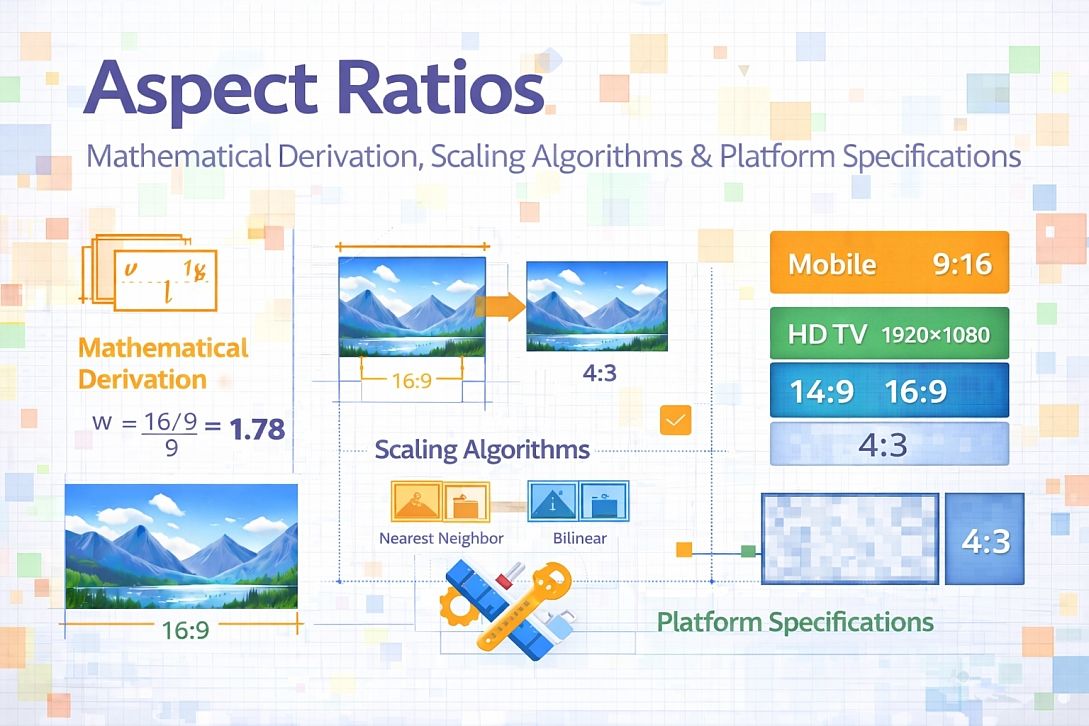
Aspect Ratios: Mathematical Derivation, Scaling Algorithms & Platform Specifications
An aspect ratio describes the proportional relationship between width and height. Written as W:H, it reduces to the smallest integers. A 1920x1080 image reduces to 16:9 because both numbers divide by 120. Understanding aspect ratios determines how images and videos display across different screens without distortion, cropping, or unwanted letterboxing.
Summary of core aspect ratio concepts:
- Mathematical reduction: Divide both width and height by their greatest common divisor (GCD)
- Display scaling: Maintaining proportions when resizing requires multiplying both dimensions by the same factor
- Letterboxing and pillarboxing: Adding black bars to fit content into containers with mismatched ratios
- Platform specifications: Each social media platform and display standard expects specific aspect ratios
The Mathematics of Aspect Ratio Reduction
Finding the simplest form of an aspect ratio requires the greatest common divisor (GCD). For 3840x2160 (4K UHD), the GCD is 120. 3840 ÷ 120 = 32. 2160 ÷ 120 = 18. The ratio is 32:18, which further reduces by dividing both by 2 to get 16:9.
The GCD calculation uses Euclid's algorithm:
function findGCD(a, b):
    while b ≠ 0:
        temp = b
        b = a mod b
        a = temp
    return a
For aspect ratios, the order of width and height does not matter mathematically, but by convention, width precedes height. A vertical image with 1080x1920 reduces to the same 16:9 ratio, just oriented vertically.
Common aspect ratios and their reduced forms:
| Common Resolution | Reduced Ratio | Orientation | Typical Use |
|---|---|---|---|
| 1920x1080 | 16:9 | Landscape | Modern monitors, YouTube, TV |
| 1280x720 | 16:9 | Landscape | HD-ready, budget displays |
| 3840x2160 | 16:9 | Landscape | 4K UHD television and monitors |
| 1024x768 | 4:3 | Landscape | Older monitors, iPad (pre-2018) |
| 2048x1536 | 4:3 | Landscape | iPad (retina), some tablets |
| 1080x1920 | 9:16 | Portrait | TikTok, Instagram Stories, Reels |
| 1080x1080 | 1:1 | Square | Instagram posts, profile pictures |
| 1200x630 | 1.905:1 (≈1.9:1) | Landscape | Facebook link previews |
| 1920x800 | 2.4:1 | Landscape | Cinematic widescreen (scope) |
| 4096x2160 | 1.9:1 (≈17:9) | Landscape | Digital cinema (DCI 4K) |
Scaling Algorithms for Aspect Ratio Preservation
Maintaining aspect ratio while resizing requires calculating the target dimensions from a single constraint. Two methods exist: fit within bounds (contain) or fill bounds (cover).
Contain method (no cropping, possible letterboxing):
- Target width = min(target_width, source_width * (target_height / source_height))
- Target height = min(target_height, source_height * (target_width / source_width))
Cover method (fills entirely, possible cropping):
- Target width = max(target_width, source_width * (target_height / source_height))
- Target height = max(target_height, source_height * (target_width / source_width))
For web development, CSS handles these calculations:
/* Contain - entire image visible, may have bars */
img.contain {
    object-fit: contain;
    background-color: black; /* for letterbox/pillarbox areas */
}

/* Cover - fills container, may crop edges */
img.cover {
    object-fit: cover;
    object-position: center; /* controls which part remains visible */
}

/* Fill - distorts, avoid unless intentional */
img.fill {
    object-fit: fill; /* stretches - do not use for photos */
}
Five Practical Use Cases for Aspect Ratio Management
YouTube Thumbnail Creation
Specific constraints: YouTube thumbnails display at 1280x720 (16:9) but appear as small as 120x68 pixels in search results. Text must remain readable at tiny sizes. Custom thumbnails require exact 16:9 dimensions; YouTube adds black bars to other ratios.
Common mistakes: Uploading thumbnails with incorrect aspect ratios. YouTube adds letterboxing, which shrinks the visible area and makes text unreadable. Using 4:3 or vertical video frames as thumbnail sources. Placing critical information in the corners, which gets cropped on some devices.
Practical advice: Export thumbnails at exactly 1280x720 pixels (16:9). Keep important content (face, text, key objects) within the central 4:3 area (960x720). Test the thumbnail at actual display size on desktop (large), mobile (small), and TV (overscan areas cut off edges). Use 1080x1080 as a safe square output if the platform supports multiple ratios.
Instagram Multi-Format Posting
Specific constraints: Instagram supports portrait (4:5), landscape (1.91:1), and square (1:1) in the feed. Stories and Reels require 9:16. Carousel posts can mix ratios, but the platform crops inconsistently across positions.
Common mistakes: Uploading 16:9 landscape photos to the feed. Instagram crops them to 1.91:1, cutting off the top and bottom. Using different aspect ratios in a single carousel without testing. The platform centers each image independently, creating inconsistent framing.
Practical advice: For feed posts, use 1080x1350 pixels (4:5 portrait) for maximum screen coverage. Use 1080x1080 (1:1 square) for safety. Use 1080x566 (1.91:1 landscape) only when the horizontal composition is essential. For carousels, crop all images to the same aspect ratio before uploading. For Stories and Reels, use 1080x1920 (9:16) exactly. Keep text and faces within the central 80% area (864x1536) to avoid cropping.
Video Encoding for Multiple Platforms
Specific constraints: A single video must work on YouTube (16:9), Instagram Reels (9:16), TikTok (9:16), Twitter (16:9 or 1:1), and Facebook (16:9 or 4:5). Each platform re-encodes and crops differently.
Common mistakes: Creating separate exports for each platform from the original edit. Re-encoding causes generational quality loss. Placing text in areas that get cropped on specific platforms. Assuming black bars are safe, some platforms replace them with colored backgrounds.
Practical advice: Shoot or edit in 16:9 at 4K resolution (3840x2160). Export a master file in 16:9. For 9:16 platforms, reframe from the 16:9 master rather than cropping. Keep all critical content within the central 4:3 area of the 16:9 frame (which becomes the 9:16 vertical crop when rotated). Use a 9:16 safety guide overlay during editing. Export platform-specific versions at native dimensions: YouTube 1920x1080, Instagram Reels 1080x1920, Twitter 1280x720.
Print Framing and Mat Cutting
Specific constraints: Print sizes (4x6, 5x7, 8x10, 11x14) have different aspect ratios. A 3:2 camera photo (24x36mm sensor) does not fit an 8x10 frame (5:4 ratio) without cropping or custom matting.
Common mistakes: Ordering prints at standard sizes without checking the crop. A 3:2 image printed as 8x10 loses 1/6 of the image on each side. Assuming all frames fit all photos. Requesting white borders instead of understanding the aspect ratio mismatch.
Practical advice: Know your camera's native aspect ratio. Full-frame and APS-C sensors: 3:2. Micro Four Thirds: 4:3. Smartphones: typically 4:3 or 16:9. For 3:2 images, print at 4x6, 8x12, 12x18, or 20x30. For 4:3 images, print at 5x6.67 (custom), 10x13.33, or use 8x10 with intentional cropping. When matting, cut the mat opening to match the image ratio, not the frame ratio.
Responsive Web Design for Image Galleries
Specific constraints: Image galleries must work on desktop (16:9 or ultrawide), tablet (4:3 or 3:2), and mobile (9:16 portrait). Using fixed aspect ratios breaks on different viewports.
Common mistakes: Setting fixed height and width on image containers. Using CSSheight: 100%without an aspect-ratio property. Loading full-resolution images and scaling them with CSS wastes bandwidth.
Practical advice: Use the CSSaspect-ratioproperty to maintain proportions:aspect-ratio: 16 / 9; width: 100%;. For responsive galleries, useobject-fit: coveron images inside fixed-ratio containers. Serve different image crops using the<picture>element withmediaqueries. For example, serve 16:9 crops on desktop and 4:3 crops on tablet.
Technical Comparison: Aspect Ratio Handling Across Tools and Formats
| Tool/Method | Ratio Input | Scaling Algorithm | Cropping Control | Batch Support |
|---|---|---|---|---|
| CSS (object-fit) | Container dimensions | Contain, cover, fill | object-position | N/A (per element) |
| ImageMagick | W:H expression | Adaptive resize | Gravity parameter | Yes (CLI) |
| FFmpeg | W:H expression | Lanczos, bicubic | Crop filter | Yes (video) |
| Online calculators | Numeric entry | Arithmetic | None | No |
| Adobe Photoshop | Preset dropdown | Bicubic sharper | Manual crop tool | Via actions |
| GIMP | Numeric chain | Cubic or Lanczos | Manual | Via scripts |
| Online aspect ratio tools | Dropdown or manual | Arithmetic display | None | No |
For users who need immediate aspect ratio calculations without installing software, online aspect ratio tools implement the same GCD reduction and scaling calculations described here. These browser-based tools are suitable for quick resolution conversions, determining display dimensions for different platforms, and understanding the relationship between source and target ratios. A functional example is the Aspect Ratio Calculator, which provides ratio reduction, dimension scaling, and common preset selections.
Advanced Techniques: Non-Standard Ratios and Anamorphic Content
Anamorphic content uses non-square pixels. Cinema anamorphic lenses squeeze a wide image into a standard frame during capture. The playback system stretches the image horizontally to achieve ultrawide ratios like 2.39:1. The stored video may have 1920x1080 pixels (16:9) but displays at 2560x1080 (2.37:1 after stretch). Aspect ratio calculations must account for pixel aspect ratio (PAR), not just display dimensions.
The relationship: Display Aspect Ratio (DAR) = Storage Aspect Ratio (SAR) × Pixel Aspect Ratio (PAR).
For standard content, PAR is 1:1 (square pixels). For anamorphic, PAR might be 1.33:1 or 1.5:1.
Ultrawide monitors (21:9 or 32:9) require special consideration. A 21:9 monitor displays 16:9 content with pillarboxing. A 32:9 monitor (super ultrawide) can display two 16:9 windows side by side. Content designed for 32:9 should place critical information in the left, center, and right thirds rather than assuming a single focal point.
Dynamic aspect ratio changing within a single video (e.g., IMAX scenes in movies) requires encoding with cropping flags rather than re-encoding the entire file. The container format (MKV, MP4) supports pixel aspect ratio changes at the stream level without recompression.
Common Pitfalls and Corrected Misconceptions
Misconception: Aspect ratio and resolution are the same thing. Resolution specifies exact pixel dimensions (1920x1080). Aspect ratio describes the relationship (16:9). A 16:9 image could be 1920x1080, 1280x720, or 640x360. Changing resolution while preserving ratio keeps the shape; changing ratio while preserving resolution changes shape.
Misconception: Black bars mean wasted space. Letterboxing and pillarboxing preserve the original composition. Cropping to fill the screen removes image content. Black bars are preferable to cropping for most content except where the display medium (e.g., mobile vertical video) expects full fill.
Misconception: All monitors and TVs use 16:9. Standard monitors do. Ultrawide monitors use 21:9 or 32:9. Some tablets use 4:3 or 3:2. Smartphones use 19.5:9, 20:9, or even 21:9. The proliferation of ratios means designing for the most common target and gracefully handling others.
Misconception: Cropping to a new aspect ratio is the same as reframing. Cropping removes edges without moving the center. Reframing adjusts the crop window position to keep the subject visible. For portraits cropped from landscape to portrait, reframing keeps the face centered; simple cropping cuts off the head and shoulders.
Misconception: 4:3 is obsolete. 4:3 remains common for iPad apps, some tablets, digital photo frames, older monitors, and many enterprise displays. Some photographers prefer 4:3 or 5:4 for portraits because vertical compositions feel more balanced than 3:2 or 16:9.
Step-by-Step Decision Method for Aspect Ratio Selection
Step 1: Identify the output platform or medium. Social media platform, display device, print size, or web container. Each has specific requirements.
Step 2: Check platform documentation for exact dimensions. Do not assume. Facebook link previews require 1200x630. YouTube thumbnails require 1280x720. Instagram feed allows 1:1, 4:5, or 1.91:1 but prioritizes 4:5 for screen coverage.
Step 3: Determine source aspect ratio. Calculate using GCD or measure pixel dimensions. Know the native ratio of your camera, screen, or source image.
Step 4: Compare source and target ratios. If identical, no adjustment needed. If different, decide between containing (bars added) or covering (cropping applied).
Step 5: For the contain method, calculate the letterbox or pillarbox dimensions. Target width and height are known. Scale source to fit within these bounds. The remaining area will be filled with bars or background.
Step 6: For the cover method, determine the crop region. Scale source to completely cover the target. Center the crop by default. Adjust position to keep critical subjects visible.
Step 7: Export at exact target dimensions. Do not rely on player or browser scaling to correct aspect ratios. Always deliver at the required pixel dimensions.
Step 8: Test on the actual target device or platform. Emulators and previews miss edge cases like overscan on TVs or notch areas on phones.
Technical Answers to Specific User Questions
What aspect ratio should I use for YouTube videos? 16:9 (1920x1080 or 3840x2160). YouTube adds black bars to any other ratio, which reduces the visible area on all devices.
How do I calculate aspect ratio from pixel dimensions? Divide both dimensions by their greatest common divisor. For 2340x1080, the GCD is 60. 2340÷60=39, 1080÷60=18. The ratio is 39:18, which reduces to 13:6.
What is the difference between 4:3 and 3:2? 4:3 (1.33:1) is square, common in Micro Four Thirds cameras and iPads. 3:2 (1.5:1) is wider, common in full-frame and APS-C cameras. A 3:2 image printed at 4x6 fits perfectly; printed at 8x10 requires cropping.
Can I change the aspect ratio without cropping? No. Changing the ratio always either adds bars (contain) or removes content (cover). There is no method to change the shape of an image without losing either some area (cropping) or adding empty space (letterboxing).
What aspect ratio works for all social media? No single ratio works everywhere. For maximum compatibility, create multiple versions: 1:1 (1080x1080) for Instagram feed, 9:16 (1080x1920) for Stories/Reels/TikTok, 16:9 (1920x1080) for YouTube/Twitter.
Related Tools on Toolonic:
- Aspect Ratio Calculator – Apply the methods above instantly in your browser
- Image Cropper – Crop images to specific aspect ratios with visual preview
- Resize Image for Printing – Set exact dimensions while preserving or adjusting ratio
LEAVE A COMMENT
Recent Posts

0.0369