

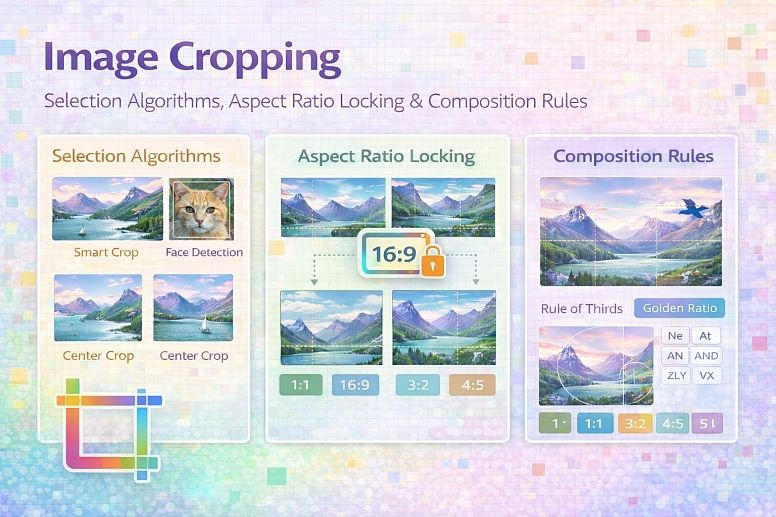
Image Cropping: Selection Algorithms, Aspect Ratio Locking & Composition Rules
Image cropping removes unwanted areas from the frame. Unlike resizing, which changes dimensions, cropping discards pixel data entirely. The operation seems simple: select a rectangle and delete everything outside it, but effective cropping requires understanding aspect ratios, composition guidelines, and the difference between destructive and non-destructive workflows. Poor cropping removes essential context or leaves awkward framing. Proper cropping improves composition, removes distractions, and adapts images to specific display containers.
Summary of core cropping concepts:
- Selection rectangle: The area of the original image to keep, defined by coordinates (x, y, width, height)
- Aspect ratio locking: Maintaining a proportional relationship between width and height during selection
- Composition guidelines: Rule of thirds, golden ratio, center framing, and leading lines
- Destructive vs. non-destructive: Destructive cropping discards pixels permanently; non-destructive cropping stores crop parameters separately
- Platform-specific crops: Different output mediums require different aspect ratios and safe zones
How Cropping Algorithms Work
At the pixel level, cropping is a simple array slice operation. The original image is a two-dimensional array of pixel values. Cropping selects a contiguous sub-array.
Given an original image of width W and height H, and a crop rectangle defined by:
- x: starting column (0 to W-1)
- y: starting row (0 to H-1)
- w: width of crop (1 to W-x)
- h: height of crop (1 to H-y)
The cropped image contains pixels where original coordinates (x + i, y + j) map to new coordinates (i, j) for i in 0..w-1 and j in 0..h-1.
No interpolation, color transformation, or compression occurs. Cropping is lossless in terms of image quality for the kept area. The discarded pixels are irretrievably lost in destructive cropping.
Coordinate system conventions:
| System | Origin | Y-axis Direction | Common Usage |
|---|---|---|---|
| Screen/display | Top-left | Downward positive | CSS, canvas, most image libraries |
| Mathematical | Bottom-left | Upward positive | OpenGL, PDF, and some print workflows |
| Image processing (some) | Top-left | Downward positive | PIL/Pillow, OpenCV, ImageMagick |
When implementing cropping across systems, convert coordinates to the target system's convention before applying the crop.
Aspect Ratio Locking and Scaling
Aspect ratio locking constrains the selection rectangle to a specific width-to-height ratio. The user drags one corner or edge, and the opposite side moves proportionally.
The locking algorithm:
Given a base point (anchor) and current mouse position (current):
    width = current.x - anchor.x
    height = current.y - anchor.y

    if locking to target ratio R = target_width / target_height:
        if width > height * R:
            width = height * R
        else:
            height = width / R
For fixed ratio crops (e.g., 16:9), the selection rectangle maintains the ratio regardless of drag direction. The user can also move the entire selection rectangle without changing its dimensions.
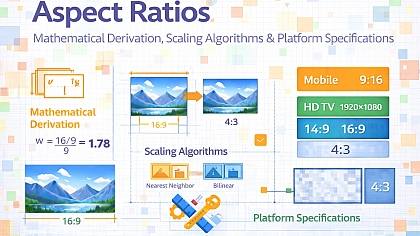
Common aspect ratio presets and their use cases:
| Ratio | Typical Use | Common Dimensions |
|---|---|---|
| 1:1 (square) | Instagram feed, profile pictures, avatars | 1080x1080, 800x800 |
| 4:5 (portrait) | Instagram portrait feed, print (8x10) | 1080x1350, 800x1000 |
| 3:2 | Classic 35mm film, print (4x6, 8x12) | 1920x1280, 1200x800 |
| 4:3 | Micro Four Thirds, older monitors, iPad | 1920x1440, 1024x768 |
| 16:9 (landscape) | YouTube, modern monitors, TV | 1920x1080, 1280x720 |
| 9:16 (portrait) | TikTok, Instagram Stories, Reels | 1080x1920, 720x1280 |
| 2.35:1 (cinemascope) | Cinematic widescreen | 1920x800, 2560x1090 |
Composition Rules for Effective Cropping
Cropping changes the composition. The placement of the subject within the frame after cropping determines visual impact.
Rule of thirds: Divide the frame into a 3x3 grid. Place important elements along the grid lines or at their intersections. The human eye naturally moves to these points. A subject centered exactly in the middle often feels static. A subject placed at a third-line intersection feels dynamic.
Golden ratio (approx 1.618:1): A more sophisticated composition rule. The golden spiral places the subject at the tightest point of the spiral. For practical cropping, the rule of thirds approximates the golden ratio closely enough.
Center framing: The subject sits exactly in the middle. This works for symmetrical subjects, portraits, product photography, and any image where symmetry is the goal. Center framing fails for landscapes, action shots, or any scene with strong directional elements.
Leading lines: Lines within the image (roads, fences, rivers, shadows) should lead toward the subject. Cropping that cuts leading lines prematurely destroys their directional power.
Headroom and nose room: In portraits, the space above the subject's head is headroom. The space in front of the subject's gaze is nose room (or looking space). Too much headroom makes the subject feel small. Too little feels cramped. The subject should look into the frame, not out of it.
| Subject Type | Headroom Recommendation | Nose Room Recommendation |
|---|---|---|
| Portrait (face straight) | 10-15% of frame height | N/A (symmetrical) |
| Portrait (looking left) | 10-15% | 20-30% space on the left side |
| Portrait (looking right) | 10-15% | 20-30% space on the right side |
| Full body | 5-10% above head | Direction of movement/gaze |
Five Practical Use Cases for Image Cropping
Social Media Profile Pictures
Specific constraints: Profile pictures display at multiple sizes: thumbnail (32x32), feed (100x100), and profile page (200x200 or larger). The subject must remain recognizable at the smallest size. Different platforms have different crop shapes: circular (most modern platforms) or square (legacy, LinkedIn). The platform may automatically center the crop differently than intended.
Common mistakes: Cropping too tightly around the face. At thumbnail size, the face becomes unrecognizable. Including too much body. The face becomes a small dot in a large frame. Placing the face off-center; the platform's auto-crop may cut off part of the face.
Practical advice: Use a 1:1 (square) crop for all profile pictures. Ensure the face occupies 40-60% of the frame height. Keep eyes in the upper third of the frame. Test the crop at 32x32 pixels before finalizing. For circular crop platforms (Instagram, Facebook, Twitter), keep the face entirely within the central 70% of the square to avoid being cut off by the circle mask.
Product Photography for E-Commerce
Specific constraints: Product images must show the item clearly without distractions. Multiple products in a category must have consistent framing. Zoom functionality requires that the crop include the entire product without cutting off edges. White backgrounds must remain pure white after cropping.
Common mistakes: Cropping differently for each product in the same category. Thumbnails appear inconsistent. Cutting off parts of the product accidentally. Leaving too much empty space makes the product look small in thumbnails. Including the edge of the photography backdrop or softbox.
Practical advice: Create a cropping preset for each product category. For shoes, crop so the shoe occupies 70-80% of the frame height and is centered. Apply the same preset to all shoes. Leave a consistent margin (5-10% of frame width) around the product. Never crop so tightly that any part of the product touches the frame edge. For products with directional elements (e.g., a car facing left), leave more space in the direction the product faces.
YouTube Thumbnail Creation
Specific constraints: YouTube thumbnails display at 1280x720 (16:9) but appear as small as 120x68 pixels in search results. Text on thumbnails must remain readable. The crop must place the subject where YouTube's interface elements (play button, duration badge, channel icon) do not cover critical areas.
Common mistakes: Cropping to 16:9 but placing the subject in the center. YouTube's play button overlay covers the center. Using a 4:3 or 1:1 crop and letting YouTube add black bars. The thumbnail becomes smaller than competing thumbnails. Placing text in the bottom-right corner. The duration badge (e.g., "10:23") covers it.
Practical advice: Crop to exactly 1280x720 (16:9). Keep the subject in the left or center-left area. The play button overlay appears in the center. Keep all text and faces within the central 960x540 area (75% of the frame). Test the thumbnail at actual display size (120x68 on desktop search results, 60x60 on mobile). If text is unreadable, increase font size or simplify.
Print Framing and Mat Cutting
Specific constraints: Print sizes (4x6, 5x7, 8x10, 11x14) have different aspect ratios from camera sensors (typically 3:2 or 4:3). Cropping for print is mandatory unless printing at custom sizes. Different paper types (glossy, matte, canvas) have different perceived contrast, affecting how crop boundaries appear.
Common mistakes: Ordering prints at standard sizes without previewing the crop. A 3:2 image printed at 8x10 loses 1/6 of the image on each side. Assuming the lab will crop intelligently. Most labs center-crop, cutting off equal amounts from both sides. Not accounting for the print bleed area. Important content too close to the edge may be trimmed.
Practical advice: Know your camera's native aspect ratio. For 3:2 images, print at 4x6, 8x12, 12x18, or 20x30. For 4:3 images, print at 5x6.67 (custom), 10x13.33, or use 8x10 with intentional cropping. When cropping for a different ratio, preview the crop and manually adjust the crop window position. For prints with borders (matting), add a 0.25-0.5 inch bleed area beyond the intended crop. Important content should be at least 0.5 inches from the final trim edge.
Removing Unwanted Objects from Edges
Specific constraints: An image contains distractions at the edges: a person walking into the frame, a trash can, a lens flare, or uneven lighting. The solution is cropping to remove these elements. However, cropping may cut off important parts of the main subject.
Common mistakes: Cropping too aggressively to remove a small distraction. The main subject becomes too large or poorly framed. Leaving the distraction partially visible. Partially visible objects are more distracting than fully visible ones. Cropping to remove a distraction but introducing awkward framing (subject now off-center or too close to the edge).
Practical advice: Crop to remove the entire distraction, not just part of it. If the distraction is at the left edge, crop the left side until the distraction is completely gone. After cropping, check the composition. If the subject is now poorly positioned, consider content-aware fill or cloning instead of cropping. For small distractions near edges, a 5-10% crop usually suffices without destroying the composition.
Technical Comparison: Cropping Methods and Tools
| Method | Aspect Ratio Control | Non-Destructive | Batch Support | Output Quality | Best Use Case |
|---|---|---|---|---|---|
| Manual pixel selection | User-defined | No (unless using layers) | No | Lossless | One-off edits |
| Fixed ratio cropping | Preset ratios | No | No | Lossless | Social media, print |
| Constraint-based (contain/cover) | Target ratio | Yes (metadata only) | Yes | Lossless | Web responsive images |
| Smart cropping (AI) | Target ratio | Yes | Yes | Lossless (algorithm chooses) | Batch processing, unknown sources |
| CSS object-fit | Target container | Yes (client-side only) | N/A | Lossless (original preserved) | Responsive web design |
For users who need immediate cropping without installing software, online image cropper tools implement the same selection algorithms and aspect ratio locking described here. These browser-based tools are suitable for single images, quick composition adjustments, and situations where dedicated photo software is unavailable. The tradeoff is reduced batch processing capability compared to command-line tools. A functional example is the Image Cropper, which provides fixed ratio presets, freeform selection, and real-time preview.
Advanced Techniques: Non-Destructive Cropping and Smart Cropping
Non-destructive cropping stores crop parameters as metadata rather than discarding pixels. The original image remains intact. When the image opens, the software applies the crop parameters on the fly. This allows crop adjustment, removal, or change at any time.
Implementation approaches:
- Sidecar files: Store crop coordinates in a separate file (e.g.,
.xmpfor Adobe) - Metadata headers: Embed crop parameters in image headers (JPEG APP segments, PNG chunks)
- Database records: Store crop parameters in a DAM system referencing the original image
- Layered files: Keep original as background layer, crop as layer mask (PSD, TIFF)
Smart cropping uses computer vision to identify the most important region of an image. The algorithm analyzes saliency (what draws human attention), detects faces, and identifies text regions. The crop window positions itself to keep important content visible.
Saliency detection considers:
- Face locations (highest priority)
- Text regions (high priority)
- High-contrast areas (medium priority)
- Areas with unusual colors (medium priority)
- Center of the image (baseline fallback)
For batch processing, smart cropping applies the same target aspect ratio to each image but positions the crop window individually based on content.
Safe zones define areas of an image that must remain visible after cropping for different display contexts. For example, a banner image might need a safe zone for text overlay, or a video thumbnail needs to avoid the play button overlay.
Common Pitfalls and Corrected Misconceptions
Misconception: Cropping improves image quality. Cropping removes pixels, reducing total information. The remaining pixels are unchanged, but the image has lower resolution. Enlarging a cropped image to the original dimensions requires interpolation, which reduces quality.
Misconception: Aspect ratio and crop ratio are the same thing. Aspect ratio describes the proportional relationship of the final image. Crop ratio describes the shape of the selection rectangle. For a final image, they are the same. During editing, the crop ratio may differ from the final output ratio if the user plans to scale or pad.
Misconception: Cropping is reversible. Destructive cropping permanently discards pixels. Once saved, the cropped area cannot be recovered. Non-destructive cropping (adjustment layers, metadata) is reversible. Always keep original images and crop copies or use non-destructive workflows.
Misconception: The rule of thirds applies to every image. The rule of thirds is a guideline, not a law. Symmetrical subjects, minimalist compositions, and certain artistic styles work better with center framing. Knowing when to break composition rules is as important as knowing the rules.
Misconception: Cropping to a standard aspect ratio always works for print. Print labs often require specific pixel dimensions, not just aspect ratios. A 16:9 image could be 1920x1080 (suitable for small prints) or 3840x2160 (suitable for large prints). Cropping to the correct aspect ratio is necessary but not sufficient for print.
Step-by-Step Decision Method for Image Cropping
Step 1: Identify the output medium. Web, social media, print, or video thumbnail. Each has specific aspect ratios and resolution requirements.
Step 2: Determine the target aspect ratio. Check platform documentation. For web design, note the container aspect ratio. For print, confirm the paper size and whether borders are acceptable.
Step 3: Choose a composition rule. Rule of thirds for dynamic scenes, center framing for symmetry, golden ratio for landscapes. Place the subject accordingly.
Step 4: Set the crop aspect ratio lock. If the output requires a specific ratio, lock it before dragging the crop rectangle.
Step 5: Drag the crop rectangle. Position the rectangle to include the subject while removing distractions. For portraits, check headroom and nose room. For products, leave consistent margins.
Step 6: Adjust the crop position. Move the rectangle while keeping the aspect ratio locked. Test different placements of the subject within the frame.
Step 7: Preview at final display size. Zoom out to see the image as it will appear on the target platform. Check that text is readable, faces are recognizable, and no critical content is near the edges.
Step 8: Apply the crop destructively or non-destructively. For final exports, destructive cropping is acceptable if the original is preserved separately. For ongoing editing, use non-destructive cropping.
Step 9: Export at target dimensions. After cropping, resize to the exact pixel dimensions if required by the output platform.
Technical Answers to Specific User Questions
What is the difference between cropping and resizing? Cropping removes pixels from the edges, changing the field of view but keeping the same pixel density. Resizing changes the total pixel count through interpolation, changing the image dimensions without changing the field of view.
Can I crop an image without losing quality? Cropping itself does not reduce quality for the remaining pixels. However, if you crop and then enlarge the cropped image back to the original dimensions, the enlargement requires interpolation, which reduces quality. Keep cropped images at their natural cropped size.
What aspect ratio should I use for Instagram feed posts? Instagram feed supports 1:1 (square), 4:5 (portrait, 1080x1350), and 1.91:1 (landscape, 1080x566). 4:5 portrait occupies the most screen space on mobile feeds. Use 1:1 for safety. Use 1.91:1 only when the landscape composition is essential.
How do I crop multiple images to the same aspect ratio? Use batch cropping. Specify the target aspect ratio and optionally the crop position (center, top-left, face detection). Most image processing software (ImageMagick, Photoshop batch actions, online batch croppers) supports this.
Why does my cropped image look pixelated when I upload it? The cropped image has fewer pixels than the original. The platform is enlarging it to fit its display area. Crop to the platform's recommended dimensions, not just aspect ratio. For the Instagram feed, crop and resize to 1080x1350 (portrait) or 1080x1080 (square).
Related Tools on Toolonic:
- Image Cropper – Apply the methods above instantly in your browser
- Aspect Ratio Calculator – Calculate target dimensions before cropping
- Resize Image for Printing – Resize cropped images to exact print dimensions
- Image Enhancer – Adjust exposure and contrast after cropping
LEAVE A COMMENT
Recent Posts

0.0349