
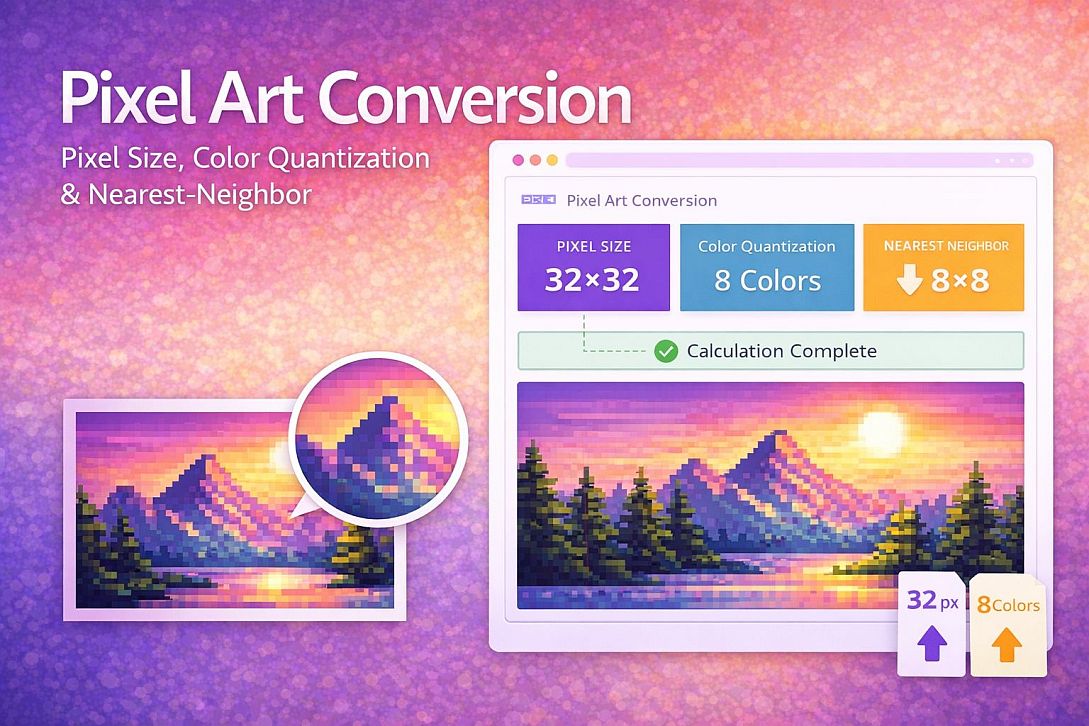
Pixel Art Conversion: Pixel Size, Color Quantization & Nearest-Neighbor
Digital images use continuous color gradients and anti-aliasing. Pixel art uses large, solid-color blocks at low resolutions. Converting one to the other requires discarding data and imposing strict quantization rules. Most automated tools fail because they treat the process as simple downsampling. The underlying problem is color selection and edge alignment.
This process forces an image into a grid of square pixels, each with a single color value. The result mimics the constraints of early graphics hardware or deliberate retro styling.
Summary of core requirements:
- Pixel size: Final output resolution determines the level of detail. Common sizes range from 16x16 to 128x128 pixels.
- Color palette: Each pixel can only hold one color. Limiting the total colors (often 16 to 256) produces the characteristic flat look.
- Edge handling: Anti-aliased edges create intermediate colors that must be forced to solid boundaries.
- Conversion sequence: Downsample → quantize colors → apply pixel-perfect scaling.
Why Standard Image Scaling Produces Poor Pixel Art
Bilinear or bicubic interpolation creates smooth transitions between pixels. Pixel art requires hard edges. Resizing an image to a smaller dimension using standard algorithms preserves gradients, producing muddy results. The image becomes blurry rather than blocky.
The correct method uses nearest-neighbor sampling. This algorithm selects the color of the closest pixel from the original image without averaging. Each output pixel maps directly to one input pixel, preserving sharp transitions.
Color depth also matters. A standard photograph uses 16.7 million colors (24-bit). Pixel art typically uses indexed color palettes with 16 to 64 colors. Without quantization, the result retains subtle variations that break the flat appearance.
Pixel Size Selection and Its Impact on Output
The pixel size parameter determines how many individual color blocks compose the final image. This is distinct from the display scaling applied afterwards.
When converting, pixel size refers to the target resolution. A 512x512 source image converted to 32x32 pixel art means each output pixel represents a 16x16 block of the original. The conversion algorithm must decide which single color represents that entire area.
Common pixel sizes for different use cases:
| Use Case | Target Resolution | Color Palette Size | Typical Display Scale |
|---|---|---|---|
| Game sprite (character) | 16x16 to 32x32 | 16-32 colors | 8x to 16x |
| Game tile (environment) | 32x32 to 64x64 | 32-64 colors | 4x to 8x |
| Profile icon | 48x48 to 64x64 | 32-64 colors | 2x to 4x |
| Full scene art | 128x128 to 256x256 | 64-256 colors | 2x to 4x |
| Large print/poster | 256x256 to 512x512 | 256 colors | 1x (no scaling) |
Larger pixel sizes (higher resolution) retain more original detail but require more manual cleanup. Smaller sizes produce stronger abstraction but lose recognizable features.
Color Quantization Methods for Pixel Art
Reducing color count requires choosing which colors to keep. The most common methods:
Uniform quantization divides the RGB cube into equal regions. Fast, but ignores color distribution in the specific image. Produces banding artifacts.
Median cut recursively splits color space at the median of the longest axis. Better for preserving dominant colors. Used in many automated palettes.
K-means clustering groups similar colors into K clusters. Computationally heavier but produces the most accurate representation of the original's color distribution.
Fixed palette mapping forces colors to a predefined set (e.g., the 64-color EGA palette or a retro console palette). Useful when the output must match specific hardware constraints.
For pixel art, K-means with K between 16 and 64 produces the best results for most source images. The algorithm identifies the most visually important colors and discards the rest.
Five Practical Use Cases for Image to Pixel Art Conversion
Game Character Sprites from Concept Art
Specific constraints: Character must remain recognizable at 32x32 resolution. The original concept art contains shading, highlights, and small details like fingers or facial features that cannot render at low resolution.
Common mistakes: Downsampling directly without adjusting the source. Fine lines turn into disconnected pixels. Skin tones blend together, removing facial definition. Attempting to preserve every original color creates noisy output.
Practical advice: Pre-process the source image by increasing contrast and reducing small details manually. Convert to 64x64 first, then review and clean pixel clusters, then reduce to 32x32. Limit skin tones to three shades maximum. Outline major features with dark pixels before color filling.
Profile Pictures for Social Platforms
Specific constraints: Final output displayed at 48x48 to 64x64. Viewers see the image on small screens. The original is typically a photograph with complex lighting and texture.
Common mistakes: Using too many colors. Photographs converted with 128 colors still look like blurry photos, not pixel art. Preserving the original aspect ratio without considering the crop region. The face becomes too small relative to the frame.
Practical advice: Crop tightly to the subject before conversion. Use a 16-color palette maximum. Apply edge detection to identify facial features, then manually reinforce the eyes and mouth with high-contrast colors. Accept that hair becomes a solid shape rather than individual strands.
Environment Tiles for Retro-Style Games
Specific constraints: Tiles must tile seamlessly. The conversion process cannot create edge discontinuities. Each tile uses the same palette. Source images are often photographs of textures like grass, stone, or water.
Common mistakes: Converting each tile independently. Palette drift between tiles makes seams visible. Using source photos with lighting gradients. A photo of grass with a shadow on one side cannot tile because the brightness shifts.
Practical advice: Create a master palette from all source images before any conversion. Use procedural methods: downsample the texture to 64x64, apply a 32-color quantization, then duplicate and offset the result to check seams. Modify edge pixels manually until the pattern repeats. Avoid any source image with directional lighting.
Converting Photographs to Pixel Art Portraits
Specific constraints: Human face recognition requires specific feature placement. The difference between 32x32 and 48x48 resolution changes whether the eyes can have separate pixels for white, iris, and pupil.
Common mistakes: Letting the algorithm decide eye placement. Quantization merges eye color with surrounding skin. The mouth becomes a single ambiguous pixel row. Nostrils disappear or merge with the nose bridge.
Practical advice: Convert at 64x64 minimum. Increase the contrast of the face region by 40% before conversion. After quantization, zoom to 800% and examine each facial feature. If the eyes are fewer than 4x4 pixels, increase the target resolution. Manually place eye pixels using a separate layer: two white pixels, one black pupil pixel below, one skin pixel below that for the lower lid.
Batch Processing Art Assets for Demoscene or Constraints
Specific constraints: Converting dozens or hundreds of images to a consistent style and palette. Output must fit within file size limits (e.g., 256KB for a sprite sheet). All images share the same pixel size and color limits.
Common mistakes: Using different quantization seeds for each image. Two images of the same object converted separately produce mismatched colors. Ignoring the file size impact of palette storage.
Practical advice: Generate a single global palette from all source images combined. Use fixed palette mapping rather than per-image optimization. After conversion, run a second pass that reduces unique colors per image to the subset actually used. Store the palette once globally. For web delivery, convert to PNG with indexed color mode.
Technical Comparison: Software, Libraries & Online Tools for Conversion
| Tool Type | Examples | Method Control | Batch Processing | Best For |
|---|---|---|---|---|
| Desktop software | Aseprite, GraphicsMagick | Full (all parameters) | Yes | Professional asset pipelines |
| Command line | pngquant, ImageMagick | Moderate (flags and arguments) | Yes | Automated scripts |
| Programming libraries | Python PIL, OpenCV | Unlimited (custom code) | Yes | Custom workflows |
| Online generators | Toolonic Pixel Art Generator | Moderate (preset options) | No | Single images, quick testing |
For users who need immediate results without installing software or writing code, online pixel art generators implement the same nearest-neighbor downsampling and color quantization methods described here. These browser-based tools are suitable for one-off conversions, rapid prototyping of pixel sizes, and situations where batch processing is unnecessary. The tradeoff is reduced control over quantization algorithms and palette optimization compared to desktop software. A functional example is the Pixel Art Generator, which provides adjustable pixel size, color palette limiting, and live preview updates.
Advanced Techniques for Expert-Level Control
Dithering patterns introduce texture when the palette lacks a specific color. Floyd-Steinberg dithering distributes error to neighboring pixels. For pixel art, ordered dithering with 2x2 or 4x4 Bayer matrices produces a more deliberate retro appearance. The tradeoff: dithered areas look noisy at small scales.
Palette indexing optimization reduces file size without changing appearance. After quantization, many colors remain unused. Removing them and remapping indices cuts PNG file size by 20-40%. Tools like pngcrush or zopflipng perform this automatically.
Edge detection before conversion preserves line art. Running a Sobel or Canny filter on the original, then overlaying the edge mask after quantization keeps boundaries sharp. The method requires storing edges as a separate binary layer and forcing those pixels to black or white after color reduction.
Post-conversion pixel-perfect scaling applies integer multiples only. Scaling 32x32 pixel art to 256x256 for display requires a factor of 8. Any fractional scale introduces interpolation artifacts. CSS on the web:image-rendering: crisp-edges;orpixelatedforces nearest-neighbor scaling in browsers.
Common Pitfalls and Corrected Misconceptions
Misconception: Higher resolution always produces better pixel art. A 256x256 conversion retains so much original detail that it no longer reads as pixel art. The output looks like a blurry, low-resolution photo. True pixel art requires visible pixel blocks.
Misconception: Any image can convert automatically without cleanup. Automated conversion produces a starting point, not a finished result. Edge pixels always require manual adjustment. Color clusters need merging. Isolated single pixels (noise) must be removed.
Misconception: Preserving transparency is straightforward. Alpha channels quantize like color channels. Semi-transparent pixels become either fully opaque or fully transparent. Gradients to transparency turn into hard edges. The solution: flatten transparent gradients to a solid background color before conversion.
Misconception: Dithering fixes all palette limitations. Dithering introduces visual noise. At low resolutions (under 64x64), dithered areas look like static. Solid color blocks read more clearly. Use dithering only for large uniform areas like skies or walls.
Misconception: Pixel size means display size. An image can be 32x32 pixels (the pixel size) but display at 320x320 pixels on screen. The display scale factor multiplies each pixel without changing the underlying data. Never confuse source resolution with output dimensions.
Step-by-Step Decision Method for Conversion
Step 1: Determine the output use case. Game sprite, static icon, environment texture, or art piece. Each has different resolution and color requirements.
Step 2: Select target pixel size. Start with 64x64 for recognizable subjects. Test 32x32. If features disappear, increase size. If the result looks like a normal photo, decrease the size.
Step 3: Choose a palette size. Start with 32 colors. Reduce to 16 for strong abstraction. Increase to 64 for gradients that must remain smooth.
Step 4: Pre-process the source. Increase contrast by 20-30%. Remove small details (under 4x4 pixels). Flatten gradients. Replace smooth gradients with 2-3 solid bands.
Step 5: Perform the conversion. Use nearest-neighbor downsampling to target resolution. Apply K-means quantization with the chosen palette size. Save as indexed PNG.
Step 6: Review at 800% zoom. Examine every 4x4 block. Look for isolated pixels. Check edge continuity. Verify feature recognition (eyes, mouth, key shapes).
Step 7: Manual cleanup pass. Merge single-pixel noise into neighboring clusters. Reinforce lost edges by adding dark pixel borders. Remove colors used on fewer than 10 pixels.
Step 8: Final palette optimization. Remove unused colors. Remap indices. Reduce to 4 bits per channel if file size matters.
Step 9: Scale for display. Multiply dimensions by integer (2x, 4x, 8x). Apply nearest-neighbor scaling only. Never use bilinear or bicubic for final output.
Technical Answers to Specific User Questions
What is the minimum pixel size for a recognizable human face? 16x16 provides enough pixels for eyes, nose, and mouth as distinct blocks, but individuals become indistinguishable. 32x32 allows facial proportions and basic expression. 48x48 enables individual eye placement with separate iris and pupil pixels.
Why does my converted image look like a mess of random colors? The quantization algorithm failed to prioritize important colors. Increase the palette size or switch from uniform quantization to K-means. Pre-processing to increase contrast also helps by separating color groups.
Can I convert animated GIFs frame by frame? Yes, but each frame converts independently. Palette flickering occurs unless all frames share the same indexed palette. Generate a global palette from all frames combined, then apply that fixed palette to every frame during conversion.
How do I handle gradients in the source image? Gradients do not survive low-color quantization. Replace gradients with 2-4 solid bands before conversion. Posterize the source to 4-8 levels per channel as a preprocessing step.
What file format should I save to? PNG with indexed color mode. GIF works but is limited to 256 colors and has larger file sizes. JPEG is unsuitable because compression introduces new colors and blurring. WebP supports indexed color but has inconsistent browser support for pixel-perfect scaling.
Related Tools on Toolonic:
- Pixel Art Generator – Apply the methods above instantly in your browser
- Image Cropper – Prepare source images before conversion
- Image Enhancer – Adjust contrast and clarity pre-conversion
LEAVE A COMMENT
Recent Posts
0.0365