
Resize Image for Printing: DPI, PPI, Interpolation Algorithms & Paper Sizes
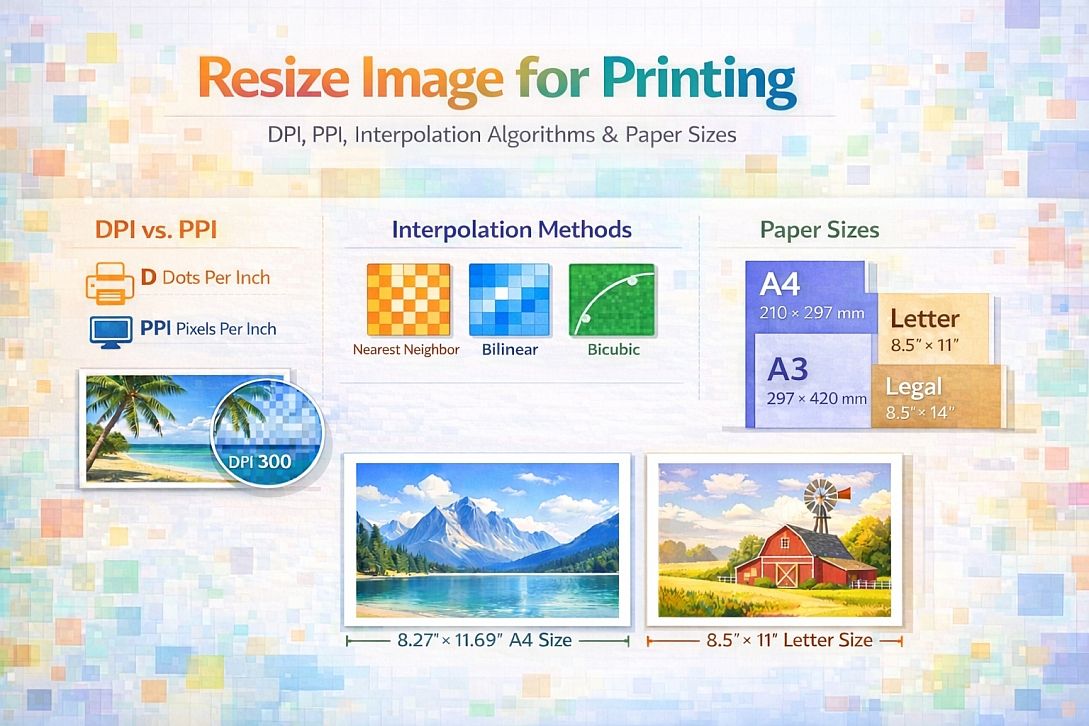
Resizing an image for print is fundamentally different from resizing for screen display. Screens use pixels as fixed units. Print uses physical dimensions (inches, centimeters) with variable pixel density measured in DPI (dots per inch) or PPI (pixels per inch). Resizing for print requires calculating the target pixel dimensions from the desired print size and required resolution. Understanding interpolation algorithms determines whether enlarged images appear sharp or blurry.
Summary of core print resizing concepts:
- PPI (pixels per inch): Number of pixels in one linear inch of the printed image
- DPI (dots per inch): Number of ink dots a printer places per inch (different from PPI)
- Target calculation: Print width × PPI = required pixel width
- Interpolation algorithms: Methods for calculating new pixel values when enlarging or reducing
- Optimal print resolutions: 300 PPI for standard prints, 150-200 PPI for large-format, 72-100 PPI for billboards
The Mathematics of Print Resizing
The relationship between pixel dimensions, print size, and PPI is a simple formula:
Pixel dimension = Print dimension (inches) × PPI
Conversely:
PPI = Pixel dimension ÷ Print dimension (inches)
For a 300 PPI print at 8×10 inches:
- Width: 8 inches × 300 PPI = 2400 pixels
- Height: 10 inches × 300 PPI = 3000 pixels
- Total pixels: 2400 × 3000 = 7.2 megapixels
For an existing image, the achievable print size at a given PPI:
Print dimension (inches) = Pixel dimension ÷ PPI
For a 1920×1080 image at 300 PPI:
- Width: 1920 ÷ 300 = 6.4 inches
- Height: 1080 ÷ 300 = 3.6 inches
The same image at 150 PPI:
- Width: 1920 ÷ 150 = 12.8 inches
- Height: 1080 ÷ 150 = 7.2 inches
Minimum PPI recommendations by print type and viewing distance:
| Print Type | Typical Viewing Distance | Minimum PPI | Recommended PPI | Maximum PPI (diminishing returns) |
|---|---|---|---|---|
| Wallet/ID photo | 6-12 inches | 250 | 300 | 400 |
| Standard photo (4×6 to 8×10) | 12-18 inches | 200 | 300 | 400 |
| Magazine/book | 12-18 inches | 225 | 300 | 350 |
| Poster (11×17 to 24×36) | 24-36 inches | 150 | 200 | 300 |
| Large format (24×36 to 40×60) | 36-60 inches | 100 | 150 | 200 |
| Billboard | 50+ feet | 15 | 30 | 72 |
The inverse relationship between viewing distance and required PPI means billboards can use very low-resolution images. A 1920×1080 image at 30 PPI prints at 64×36 inches—sufficient for most large-format prints viewed from several feet away.
How Interpolation Algorithms Work
When resizing an image to new pixel dimensions, the algorithm must create new pixels (enlarging) or discard existing pixels (reducing). Enlarging requires interpolation: calculating the color values of new pixels based on surrounding original pixels.
Nearest-neighbor (fastest, lowest quality):
- Selects the color of the closest original pixel
- No averaging or calculation
- Produces blocky, pixelated results at high enlargement factors
- Best for: Pixel art, line art, any image with hard edges
Bilinear interpolation:
- Calculates new pixel values using a weighted average of the 2×2 nearest original pixels
- Smooth but slightly soft
- 2×2 kernel (4 source pixels)
- Best for: General photography, web images
Bicubic interpolation:
- Uses a weighted average of the 4×4 nearest original pixels
- Sharper than bilinear, better edge preservation
- 4×4 kernel (16 source pixels)
- Best for: Print preparation, high-quality enlargements
Bicubic smoother:
- Bicubic variant with stronger smoothing
- Reduces aliasing and jagged edges
- Best for: Enlarging photographs with smooth gradients
Bicubic sharper:
- Bicubic variant with edge enhancement
- Preserves detail but may create halos
- Best for: Reducing image size (not recommended for enlarging)
Lanczos (highest quality, slowest):
- Uses sinc-based weighted average of 6×6 or 8×8 nearest pixels
- Preserves sharpness and detail better than bicubic
- Can produce slight ringing artifacts around high-contrast edges
- Best for: Maximum quality enlargements, fine art prints
| Algorithm | Kernel Size | Speed | Sharpness | Artifacts | Best Use |
|---|---|---|---|---|---|
| Nearest-neighbor | 1×1 | Instant | Blocky | Pixelation | Pixel art |
| Bilinear | 2×2 | Very fast | Soft | None | Web thumbnails |
| Bicubic | 4×4 | Fast | Good | Minimal | General print |
| Bicubic smoother | 4×4 | Fast | Soft | None | Portrait enlargements |
| Bicubic sharper | 4×4 | Fast | Very good | Halos (if overdone) | Reducing images |
| Lanczos | 6×6 or 8×8 | Moderate | Excellent | Ringing | Fine art, critical enlargements |
Standard Paper Sizes and Aspect Ratios
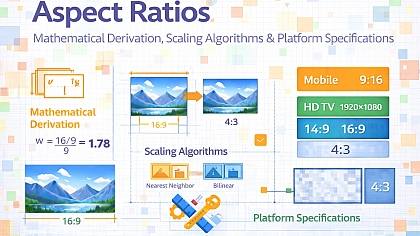
Different regions use different paper size standards. Resizing for print requires matching or cropping to these aspect ratios.
North American standard sizes:
| Paper Size | Dimensions (inches) | Aspect Ratio | Typical Use |
|---|---|---|---|
| 4×6 | 4 × 6 | 2:3 | Wallet, snapshot |
| 5×7 | 5 × 7 | 1:1.4 (≈5:7) | Small frame |
| 8×10 | 8 × 10 | 4:5 | Standard frame, document |
| 8.5×11 (Letter) | 8.5 × 11 | ≈1:1.29 | Document, brochure |
| 11×14 | 11 × 14 | ≈1:1.27 | Medium frame |
| 11×17 (Tabloid) | 11 × 17 | ≈1:1.55 | Poster, booklet |
| 12×18 | 12 × 18 | 2:3 | Large frame, poster |
| 16×20 | 16 × 20 | 4:5 | Large frame, art print |
| 18×24 | 18 × 24 | 3:4 | Poster, signage |
| 20×30 | 20 × 30 | 2:3 | Large poster |
| 24×36 | 24 × 36 | 2:3 | Standard poster |
International (ISO) standard sizes (A-series):
| Paper Size | Dimensions (mm) | Dimensions (inches) | Aspect Ratio | Typical Use |
|---|---|---|---|---|
| A6 | 105 × 148 | 4.13 × 5.83 | 1:√2 (≈1:1.414) | Postcard |
| A5 | 148 × 210 | 5.83 × 8.27 | 1:√2 | Flyer, notebook |
| A4 | 210 × 297 | 8.27 × 11.69 | 1:√2 | Document, letter |
| A3 | 297 × 420 | 11.69 × 16.54 | 1:√2 | Poster, diagram |
| A2 | 420 × 594 | 16.54 × 23.39 | 1:√2 | Large poster |
| A1 | 594 × 841 | 23.39 × 33.11 | 1:√2 | Technical drawing |
| A0 | 841 × 1189 | 33.11 × 46.81 | 1:√2 | Large format poster |
The A-series aspect ratio (1:√2 ≈ 1:1.414) means folding an A4 sheet in half produces A5 with the same aspect ratio. This differs from standard photo aspect ratios (4:5, 2:3, 3:4). Cropping is required when printing photos on A-series paper.
Five Practical Use Cases for Print Resizing
Enlarging a Small Photo for Framing
Specific constraints: A 1200×800 pixel image (1 megapixel) from an old digital camera needs to print at 8×10 inches. At 8×10, the required resolution is 2400×3000 pixels for 300 PPI. Enlargement factor: 2× in width, 3.75× in height. The image lacks sufficient detail for a 300 PPI print.
Common mistakes: Enlarging directly to 8×10 at 300 PPI using nearest-neighbor or bilinear interpolation. The result looks pixelated or blurry. Printing at 8×10 without resizing first. The printer driver resizes poorly, producing worse results than dedicated resizing software.
Practical advice: Accept a lower PPI for this print size. At 8×10, 1200÷8 = 150 PPI, 800÷10 = 80 PPI (not square). First, crop the image to 4:5 aspect ratio (1200×960). Then 1200÷8 = 150 PPI, 960÷10 = 96 PPI. Viewing distance for an 8×10 frame is typically 18+ inches. 150 PPI is acceptable. Use Lanczos or bicubic smoother for enlargement. Do not sharpen before enlargement; sharpen after.
Preparing a High-Quality Fine Art Print
Specific constraints: A 24 megapixel image (6000×4000 pixels) prints at 16×20 inches. Required resolution for 300 PPI: 4800×6000 pixels. The image has sufficient resolution. The goal is maximum sharpness and detail preservation.
Common mistakes: Using bicubic smoother for enlargement (unnecessary, image is already large enough). Sharpening before resizing to final dimensions. Applying excessive noise reduction, which destroys fine detail visible in large prints.
Practical advice: Resize to exactly 4800×6000 pixels (16×20 at 300 PPI) using Lanczos or bicubic sharper. Apply output sharpening after resizing, not before. For fine art prints, consider printing at 360 PPI (Epson printers) or 400 PPI (Canon printers) for slightly greater detail. Convert to the printer's color space (Adobe RGB or ProPhoto RGB) before final export.
Printing a Smartphone Photo at Poster Size
Specific constraints: A 12 megapixel smartphone photo (4032×3024 pixels, 4:3 aspect ratio) prints at 24×36 inches (2:3 aspect ratio, poster standard). The aspect ratios do not match. Required resolution for 150 PPI (poster viewing distance): 3600×5400 pixels. The image has enough pixels for width (4032 > 3600) but not for height (3024 < 5400).
Common mistakes: Printing at 24×36 without cropping or adjusting. The image must stretch or be letterboxed. Resizing to 3600×5400 without maintaining aspect ratio, causing distortion. Placing the subject in the center of the 4:3 frame, then cropping to 2:3 cuts off the top and bottom.
Practical advice: Crop the 4:3 image to a 2:3 aspect ratio before resizing. For 4032×3024, a 2:3 crop could be 4032×2688 (crop 336 pixels from height) or 4536×3024 (crop 504 pixels from width, then enlarge). Choose based on composition. After cropping, resize to 3600×5400 using Lanczos. For poster viewing distance (3+ feet), 125-150 PPI is sufficient. Do not attempt to reach 300 PPI; the enlargement factor would be too extreme.
Batch Resizing for a Photo Book
Specific constraints: A photo book requires 100+ images at 300 PPI, each at specific dimensions (e.g., full-page: 2400×3000 pixels for 8×10). Images come from multiple sources: smartphones (4:3), DSLRs (3:2), and old scans (various). Each image needs cropping and resizing to match the book's layout templates.
Common mistakes: Resizing each image individually without a preset. Inconsistent aspect ratios across the book. Using different interpolation algorithms for different images results in inconsistent sharpness. Applying sharpening before resizing, then the book's print workflow applies additional sharpening.
Practical advice: Create presets for each layout template (full-page, half-page, square). For each preset, define target pixel dimensions and aspect ratio. Use the same interpolation algorithm (Lanczos or bicubic sharper) for all images. Apply output sharpening after resizing, using the same settings for all images. For mixed aspect ratios, use a consistent cropping strategy (center crop for portraits, rule-of-thirds crop for landscapes). Test-print a few representative images before processing the entire batch.
Restoring and Printing an Old Scanned Photo
Specific constraints: A scanned photo from the 1980s is 1800×1200 pixels (2.1 megapixels) but has dust, scratches, and faded colors. The desired print size is 11×14 inches. Required resolution: 3300×4200 pixels for 300 PPI. Enlargement factor: 1.8× in width, 3.5× in height. The scan also needs restoration before enlargement.
Common mistakes: Enlarging first, then restoring. Restoration (cloning, healing) on a larger image requires more processing power and produces larger file sizes. Restoring then enlarging with a low-quality interpolation algorithm. Enlarging amplifies restoration artifacts.
Practical advice: Perform restoration on the original scan at native resolution. Remove dust, scratches, and color casts. Apply noise reduction carefully. Then enlarge using the Lanczos or bicubic smoother to 3300×4200 pixels. Apply mild sharpening after enlargement (amount 0.5, radius 0.8, threshold 2). For heavily damaged images, consider enlarging in steps (e.g., 2×, then 1.75×) rather than a single large jump. Accept a lower PPI (200-225) if the image quality is poor; lower resolution hides restoration artifacts.
Technical Comparison: Resizing Software and Algorithms
| Software | Interpolation Options | Batch Support | Print Presets | Color Management | Learning Curve |
|---|---|---|---|---|---|
| Photoshop | Nearest, Bilinear, Bicubic (4 variants), Lanczos | Yes (Actions) | Yes | Full (ICC) | High |
| GIMP | Nearest, Linear, Cubic, Lanczos, NoHalo | Yes (Scripts) | Limited | Moderate | Moderate |
| ImageMagick | 20+ algorithms (including Lanczos, Mitchell, Catrom) | Yes (CLI) | Via scripts | Full | High |
| Affinity Photo | Bilinear, Bicubic, Lanczos 3 | Yes (Macros) | Yes | Full | Moderate |
| Lightroom | Bicubic (automatic) | Yes | Yes | Full | Moderate |
| Preview (macOS) | Bilinear (default, no choice) | No | No | Limited | Low |
| Online resizers | Varies (often Bilinear) | No | No | Limited | Low |
For users who need immediate print resizing without installing software, online resize tools implement the interpolation algorithms described here. These browser-based tools are suitable for single images, quick calculations of target dimensions, and situations where dedicated software is unavailable. The tradeoff is reduced batch processing capability and fewer algorithm choices compared to professional applications. A functional example is the Resize Image for Printing, which provides target print size selection, DPI/PPI settings, and interpolation method options.
Advanced Techniques: Two-Pass Sharpening for Print
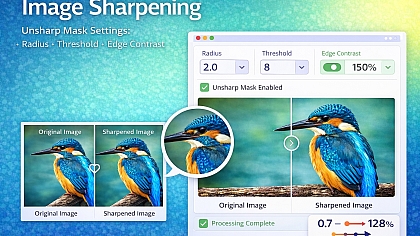
Print sharpening differs from screen sharpening. Ink spreads on paper (dot gain), softening edges. Print workflows use two-pass sharpening: capture sharpening (corrects lens softness) and output sharpening (compensates for dot gain and paper type).
Output sharpening settings by paper type:
| Paper Type | Dot Gain | Sharpening Amount | Radius | Threshold |
|---|---|---|---|---|
| Glossy | Low (5-10%) | 0.3-0.5 | 0.8-1.0 | 2-3 |
| Semi-gloss / Luster | Medium (10-15%) | 0.5-0.7 | 1.0-1.2 | 3-4 |
| Matte | High (15-25%) | 0.7-1.0 | 1.2-1.5 | 4-5 |
| Fine art / Textured | Very high (20-30%) | 0.8-1.2 | 1.5-2.0 | 5-6 |
Resolution for different printer technologies:
| Printer Type | Native Resolution | Optimal PPI | Notes |
|---|---|---|---|
| Epson (most) | 360 PPI | 360 or 180 | 720 DPI = 360 PPI × 2 dots |
| Canon (most) | 300 PPI | 300 or 150 | 600 DPI = 300 PPI × 2 dots |
| HP (most) | 300 PPI | 300 or 150 | Varies by model |
| Commercial offset | 240-400 PPI | 300 typical | Consult printer |
| Large format (inkjet) | 150-300 PPI | 180-200 typical | Viewing distance matters |
Resizing to the printer's native resolution (e.g., 360 PPI for Epson) avoids driver-side resizing, producing sharper results.
Common Pitfalls and Corrected Misconceptions
Misconception: Higher PPI always means better print quality. Beyond a certain point (typically 300-400 PPI for standard viewing distances), the human eye cannot resolve additional detail. Increasing PPI increases file size without a visible benefit. For large-format prints viewed from several feet away, 150-200 PPI is sufficient.
Misconception: DPI and PPI are the same thing. PPI measures pixels per inch in the digital file. DPI measures ink dots per inch from the printer. A printer may use multiple dots to reproduce one pixel (e.g., 720 DPI for 360 PPI = 2 dots per pixel). Do not confuse them.
Misconception: Enlarging an image always reduces quality. Enlarging reduces pixel density (PPI) at the original pixel count. However, if the enlargement uses high-quality interpolation (Lanczos, bicubic) and the viewing distance increases proportionally, perceived quality can remain high. A billboard enlarged 50× looks sharp from 50 feet away.
Misconception: You can add detail when enlarging. Interpolation creates new pixels based on existing ones. It cannot invent details that were not captured. An out-of-focus face enlarged to 300 PPI remains out of focus, now with a larger file size.
Misconception: Print size and pixel dimensions are independent. They are directly linked by PPI. A 3000×2400 pixel image prints at 10×8 inches (300 PPI) or 20×16 inches (150 PPI). Changing print size without changing pixel dimensions changes PPI.
Step-by-Step Decision Method for Print Resizing
Step 1: Determine the target print size. Measure the frame, mat opening, or paper size. Note the aspect ratio.
Step 2: Determine the required PPI. 300 PPI for small prints viewed closely (4×6 to 8×10). 200 PPI for posters (11×17 to 24×36). 150 PPI for large format (24×36+). For very large prints viewed from a distance, 100 PPI or lower is acceptable.
Step 3: Calculate required pixel dimensions. Target width (inches) × PPI = pixel width. Target height (inches) × PPI = pixel height.
Step 4: Compare the required dimensions to the source image. If the source has more pixels, downsample. If the source has fewer pixels, upsample. If source aspect ratio differs, crop first.
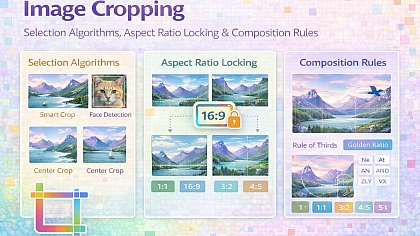
Step 5: Crop to the target aspect ratio if needed. Use the image cropper to match the print's aspect ratio. Keep the subject centered or apply the rule of thirds.
Step 6: Choose interpolation algorithm. Lanczos or bicubic sharper for critical enlargements. Bicubic smoother for enlarging soft portraits. Nearest-neighbor for pixel art. Bilinear for quick, non-critical enlargements.
Step 7: Resize to target pixel dimensions. Apply the chosen algorithm. Do not change PPI separately; set target dimensions and let the software calculate PPI.
Step 8: Apply output sharpening. Use paper-specific settings (glossy: amount 0.5, radius 0.8; matte: amount 0.8, radius 1.2).
Step 9: Convert to printer color space. sRGB for consumer printers, Adobe RGB or ProPhoto RGB for professional labs. Soft-proof using the printer's ICC profile if available.
Step 10: Export as TIFF or high-quality JPEG. TIFF for archival or professional labs. JPEG quality 95+ for consumer printers. Save a copy; keep the original untouched.
Technical Answers to Specific User Questions
What is the best PPI for printing photos at home? 300 PPI for 4×6, 5×7, and 8×10 prints. 200-250 PPI for larger prints if your printer software supports it. Most consumer printers (Canon, Epson, HP) resample to their native resolution (300 or 360 PPI) automatically.
Can I print a 72 PPI web image at 8×10? An 8×10 at 72 PPI requires 576×720 pixels (8×72 = 576, 10×72 = 720). This is very low resolution. The print will look pixelated or blurry. Enlarge the image to 2400×3000 pixels (300 PPI) using Lanczos before printing. Quality will be poor because the original lacks detail, but enlargement is necessary.
What is the difference between resizing and resampling? Resizing changes pixel dimensions (resampling). Changing PPI without changing pixel dimensions is also resizing, but it only affects print metadata, not pixel data. For print, always resample to the target pixel dimensions.
How do I know if my image has enough resolution for a large print? Calculate: pixel width ÷ desired print width (inches) = PPI. If PPI ≥ 150, the print will look good from a normal viewing distance. For a 6000×4000 image printed at 40×26.7 inches: 6000÷40 = 150 PPI. Acceptable.
Why does my print look darker than my screen? Screens emit light; prints reflect light. Calibrate your monitor. Use soft-proofing with the printer's ICC profile. For consumer printers, increase brightness by 10-15% before printing.
Related Tools on Toolonic:
- Resize Image for Printing – Apply the methods above instantly in your browser
- Image Cropper – Crop to target aspect ratio before resizing
- Aspect Ratio Calculator – Calculate dimensions for any paper size
- Image Enhancer – Adjust exposure and contrast before printing
LEAVE A COMMENT
Recent Posts

0.0346