

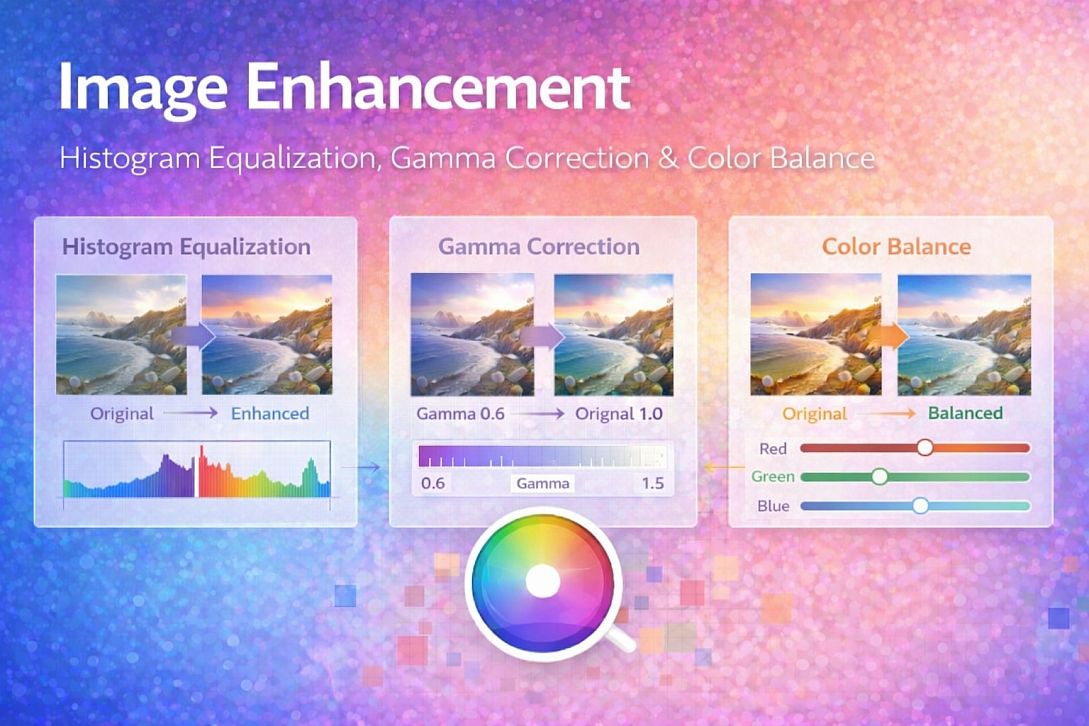
Image Enhancement: Histogram Equalization, Gamma Correction & Color Balance
Digital images often suffer from poor exposure, low contrast, or incorrect color temperature. Enhancement corrects these issues by redistributing pixel values, adjusting tonal curves, or shifting color channels. Unlike sharpening, which targets edges, enhancement operates on the entire image's luminance and color distribution. Understanding the underlying histogram operations separates predictable corrections from unnatural results.
Summary of core enhancement concepts:
- Histogram: Distribution of pixel brightness values from 0 (black) to 255 (white)
- Contrast stretching: Expanding the range of used brightness values
- Gamma correction: Nonlinear adjustment of midtones without crushing shadows or highlights
- White balance: Adjusting color channels so neutral objects appear neutral
- Vibrance vs. saturation: Saturation increases all color intensity equally; vibrance protects skin tones
How Histogram Equalization Works
A histogram shows how many pixels have each brightness value. A well-exposed image uses most of the 0-255 range without clipping at either end. An underexposed image has pixels clustered near 0. A low-contrast image has pixels clustered in the middle, rarely reaching 0 or 255.
Histogram equalization redistributes pixel values to create a flat histogram. The transformation uses the cumulative distribution function (CDF) of the original histogram.
The mathematical operation:
Let h(v) = number of pixels with value v
Let total = total pixel count
CDF(v) = sum(h(0) through h(v)) / total
New value = round(CDF(original) * 255)
This mapping stretches areas with many pixels and compresses areas with few pixels. The result increases global contrast, often dramatically. However, equalization can amplify noise in flat areas and produce unnatural looking results in images with large uniform regions.
Adaptive histogram equalization (AHE) operates on small image tiles rather than the whole image. Each tile equalizes independently, revealing local detail. The tradeoff is visible tile boundaries and noise amplification in smooth areas.
Contrast-limited adaptive histogram equalization (CLAHE) adds a clipping limit. Any histogram bin above the limit redistributes its excess pixels across other bins. This prevents noise amplification while preserving local contrast enhancement.
Gamma Correction and Tone Curves
Gamma correction applies a power-law transformation to pixel values:
Output = Input ^ (1 / gamma)
The gamma value determines midtone behavior:
| Gamma | Effect | Typical Use |
|---|---|---|
| 0.45 | Brightens midtones, compresses highlights | Display encoding (sRGB) |
| 1.0 | Linear, no change | Raw sensor data |
| 1.8-2.2 | Darkens midtones, expands highlights | Print preparation |
| >2.2 | Strong darkening | CRT monitor simulation |
Gamma correction is nonlinear. Changing gamma affects midtones significantly while leaving pure black (0) and pure white (255) unchanged. This makes gamma ideal for adjusting perceived brightness without clipping shadows or highlights.
Tone curves generalize gamma correction. A curve maps input brightness to output brightness. Raising the curve in the middle brightens midtones. Lowering the curve darkens them. An S-curve (raised highlights, lowered shadows) increases contrast. An inverted S-curve reduces contrast.
Standard curve adjustments:
- Linear: No change (45-degree line)
- Brighten: Curve above linear, flattening near white
- Darken: Curve below linear, flattening near black
- Contrast boost: S-curve, steeper in midtones
- Contrast reduce: Inverted S-curve, shallower in midtones
White Balance and Color Temperature
White balance corrects for the color temperature of the light source. Different light sources have different spectral distributions:
| Light Source | Color Temperature (Kelvin) | Dominant Tint |
|---|---|---|
| Candle/fire | 1000-2000K | Orange-red |
| Incandescent bulb | 2400-2800K | Orange |
| Sunrise/sunset | 3000-4000K | Warm orange |
| Fluorescent | 4000-5000K | Greenish |
| Daylight (noon) | 5500-6500K | Neutral white |
| Overcast sky | 6500-8000K | Cool blue |
| Shade | 8000-10000K | Deep blue |
White balance adjustment multiplies each color channel by a gain factor. The goal is to make neutral objects (gray cards, white paper) have equal red, green, and blue values.
The gray world assumption states that the average color in a scene should be gray. Under this assumption, the average red, green, and blue values across the image should be equal. The gain for each channel is:
gain_R = target_avg / avg_R
gain_G = target_avg / avg_G
gain_B = target_avg / avg_B
where target_avg is typically (avg_R + avg_G + avg_B) / 3.
For images with large colored objects, the gray world assumption fails. A scene dominated by green grass will skew white balance toward magenta. Manual white balance uses a reference point: the user selects a pixel that should be neutral, and the tool calculates gains to make that pixel's RGB values equal.
Five Practical Use Cases for Image Enhancement
Underexposed Photograph Recovery
Specific constraints: Source image has pixel values clustered near 0 (black). Details in shadows are invisible. Increasing brightness globally reveals noise. The image may also have a color cast because underexposure affects color channels unevenly.
Common mistakes: Using global brightness increase. Shadows lift, but noise becomes visible. Midtones become washed out. Highlights, if any exist, clip to white. Applying saturation increase before brightness correction amplifies color noise.
Practical advice: First, examine the histogram. If data exists in shadows (values 10-50), use gamma correction with gamma 0.5-0.7 to lift midtones while protecting highlights. If shadows contain no data (values at 0), no enhancement can recover lost information. After gamma correction, apply color balance using the gray world assumption. Finally, apply mild noise reduction (median filter, radius 1) to suppress amplified shadow noise.
Flat, Low-Contrast Image Correction
Specific constraints: Fog, haze, or poor lighting produces images where pixel values occupy only the middle range (80-180). No pure blacks or whites exist. The image looks washed out and lacks impact.
Common mistakes: Applying histogram equalization directly. The equalizer amplifies subtle variations in the sky or fog, producing unnatural banding and noise. Using global contrast sliders without understanding the histogram distribution.
Practical advice: Use contrast stretching first. Identify the minimum and maximum pixel values actually used. Remap so minimum becomes 0 and maximum becomes 255. For a typical flat image with values from 80 to 180, the mapping isnew = (original - 80) * (255 / 100). This produces a full-range image without the nonlinear artifacts of histogram equalization. Apply a mild S-curve (gamma 0.9 in shadows, 1.1 in highlights) for additional punch.
Portrait Skin Tone Correction
Specific constraints: Skin tones must appear natural. Over-saturation creates unnatural orange or red skin. Over-brightening erases facial contours. Color casts (too warm, too cool, or green from fluorescent light) affect skin most visibly.
Common mistakes: Using global saturation increase. Skin tones become ruddy. Applying white balance to the entire image without considering that skin should have some warmth. Using vibrance or saturation controls without understanding that they affect skin tones as much as other colors.
Practical advice: Use white balance first, selecting a reference point on a neutral area (white of eye, white shirt, gray card). If no neutral reference exists, adjust color temperature in small increments (500K at a time). Apply vibrance rather than saturation. Vibrance increases saturation more for less saturated colors and less for already saturated colors like skin tones. Typical vibrance increase: 20-30. Saturation increase: 0-10. Finally, apply a slight gamma increase (1.05-1.1) to brighten skin without losing contour definition.
Product Photography on White Background
Specific constraints: Product must pop against a pure white background. Background must reach true white (255,255,255) without clipping product edges. Consistent appearance across hundreds of product images.
Common mistakes: Using auto-levels or auto-contrast. These functions clip the brightest pixels to white, which may include product highlights. Applying different corrections to each image results in an inconsistent background white point across a catalog.
Practical advice: Create a preset. Set white point manually to 245 for background (leaving headroom for product highlights). Use curves to lift the background to 255 only in the last 5% of the brightness range. Apply identical settings to all products in the same category. For batch processing, sample the background brightness from a reference corner of each image and apply a consistent offset to reach 255.
Restoring Scanned or Old Photographs
Specific constraints: Scans have multiple issues: color fading (one channel is weaker than the others), dust and scratches, grain, and uneven exposure across the frame. Different color channels may fade at different rates.
Common mistakes: Applying global white balance. Fading is often uneven across the frame. Using histogram equalization, which amplifies scan grain and dust. Assuming RGB channels should have equal average values.
Practical advice: Examine each color channel separately. Cyan fading appears as weak green and blue channels. Increase the gain on weak channels individually. Apply CLAHE (contrast-limited adaptive histogram equalization) with a small tile size (8x8 pixels) and strong clip limit (3.0) to reveal local detail without amplifying grain. Follow with a mild median blur (radius 1) to suppress dust spots. For color casts that vary across the frame, use a graduated filter or radial adjustment rather than global correction.
Technical Comparison: Enhancement Methods and Tools
| Method | Algorithm | Local Control | Artifact Risk | Speed | Best Use Case |
|---|---|---|---|---|---|
| Histogram equalization | CDF remapping | None (global) | Noise amplification, banding | Very fast | Medical/scientific images |
| CLAHE | Tile-based equalization | Yes (tile size) | Tile boundaries, noise | Moderate | Non-uniform lighting |
| Gamma correction | Power law | None | Minimal | Very fast | Midtone adjustment |
| Curves | Spline interpolation | None (global curve) | Posterization if extreme | Fast | Precise tonal control |
| Levels | Linear remapping | None | Clipping | Very fast | Contrast stretching |
| Auto white balance | Gray world or specular | None | Color skew | Fast | General photography |
| Vibrance | Saturation with skin protection | Implicit | Minimal | Fast | Portrait and general use |
For users who need immediate results without configuring curves or histograms, online image enhancer tools implement the same gamma correction, contrast stretching, and white balance methods described here. These browser-based tools are suitable for single images, quick testing of different enhancement levels, and situations where dedicated photo software is unavailable. The tradeoff is reduced control over curve precision and local adjustments compared to professional applications. A functional example is the Image Enhancer, which provides adjustable sharpness, contrast, vibrance, exposure, and side-by-side preview.
Advanced Techniques: Local Adaptation and Frequency Separation
Local adaptation enhances different image regions differently based on local characteristics. The method computes a local average for each pixel using a large blur kernel (radius 50-100 pixels). The local average represents the surrounding brightness. The enhancement factor depends on the difference between the pixel and its local average. Shadows in bright areas receive different treatment than shadows in dark areas.
Retinex theory models the image as illumination multiplied by reflectance. Separating these components allows independent enhancement. The illumination layer (slowly varying) controls overall brightness. The reflectance layer (high-frequency) contains surface detail. Enhancing the illumination layer with gamma correction while applying CLAHE to the reflectance layer produces natural-looking results without halos.
Implementation steps for Retinex-based enhancement:
- Convert to logarithmic domain:
log(I) = log(illumination) + log(reflectance) - Estimate illumination using a large Gaussian blur (radius 30-50 pixels)
- Subtract illumination from the original to get reflectance
- Apply gamma correction to the illumination layer
- Apply mild CLAHE to the reflectance layer
- Add layers back and convert from log domain
Frequency separation for color enhancement splits the image into low-frequency (color and tone) and high-frequency (detail) layers using a bilateral filter. Apply white balance and contrast adjustments to the low-frequency layer only. Leave the high-frequency layer unchanged. This prevents color adjustments from introducing halos or noise.
Common Pitfalls and Corrected Misconceptions
Misconception: Auto-enhance works for every image. Auto-enhance assumes the image should have a full brightness range and neutral color balance. For creative images with intentionally low contrast or warm color casts, auto-enhance destroys the artistic intent. Always review auto-enhance results before saving.
Misconception: Histogram equalization always improves contrast. Equalization works for images with a narrow histogram. For images already having full contrast range, equalization produces unnatural, posterized results. The technique was designed for medical and scientific imaging, not general photography.
Misconception: Increasing saturation makes images look better. Over-saturated images look unnatural, with skin tones becoming orange, skies becoming electric blue, and grass becoming neon green. Professional images typically use saturation increases of 10-20%, not 50-100%. Vibrance is almost always preferable to saturation for photographs.
Misconception: White balance is the same as color temperature adjustment. Color temperature adjustments (warm/cool sliders) shift the blue-yellow axis only. True white balance also adjusts the green-magenta axis to correct for fluorescent and LED lighting. Many consumer tools omit green-magenta correction, leaving color casts in shadows.
Misconception: Enhancing an image can fix exposure problems after capture. Enhancement can improve an image within the dynamic range captured. If the camera clipped highlights to pure white or shadows to pure black, no enhancement can recover that information. Exposure errors are best fixed at capture time.
Step-by-Step Decision Method for Image Enhancement
Step 1: Examine the histogram. Identify clipping (piles at 0 or 255), clustering (narrow range), or proper distribution (spread across range). This determines the primary correction needed.
Step 2: Fix exposure and contrast first. Apply gamma correction for midtone issues (0.8-1.2 range). Apply levels/contrast stretching for narrow histograms. Do not touch color yet.
Step 3: Check white balance. Find a neutral reference (white paper, gray card, white of eye). Adjust temperature and tint until neutral objects have equal RGB values. If no reference exists, use gray world assumption or adjust visually until skin tones look natural.
Step 4: Adjust vibrance and saturation. Increase vibrance by 20-40% first. Add saturation only if needed, in 5-10% increments. For black and white images, skip this step.
Step 5: Apply local adjustments if needed. Use CLAHE for uneven lighting. Use a graduated filter for skies that are too bright compared to the foreground. Use a radial filter to brighten faces in backlit portraits.
Step 6: Compare before and after at 100% zoom. Look for noise amplification, color casts, halos around edges, and posterization in smooth gradients.
Step 7: Sharpen last. Enhancement changes the image content. Sharpening should always be the final step after all tonal and color adjustments.
Technical Answers to Specific User Questions
What is the difference between brightness and exposure in image editors? Exposure applies a linear multiplier to pixel values (ISO-like). Brightness applies a gamma-like adjustment (nonlinear). Exposure is better for correcting capture errors. Brightness is better for subjective "looks too dark" adjustments.
Why do my enhanced images look posterized (blocky colors)? The image may have insufficient bit depth. 8-bit JPEGs have only 256 values per channel. Histogram equalization or extreme curves stretch these values apart, creating gaps that appear as banding. Work in 16-bit mode when possible. Apply enhancement in small increments.
Can I enhance images without losing quality? Enhancement changes pixel values, so quality changes by definition. The question is whether the change improves appearance. For lossless enhancement, use adjustment layers in software like Photoshop and save as PSD or TIFF. For distribution, export a new file and keep the original unchanged.
What settings should I use for most web images? Start with gamma 1.05, contrast +10, vibrance +20, saturation 0. These mild settings improve most web photos without making them look processed. Adjust white balance only if there is an obvious color cast.
How do I fix images that are both too dark and too bright (backlit subjects)? Use a combination of global gamma correction (1.2-1.4) to lift shadows, then use a graduated filter or radial adjustment to pull down highlights in the bright area. CLAHE with a large tile size (32x32) also works. This is a local adjustment problem; global corrections alone cannot solve it.
Related Tools on Toolonic:
- Image Enhancer – Apply the methods above instantly in your browser
- Image Sharpener – Apply final sharpening after enhancement
- Image Compressor – Reduce file size after enhancement
- Aspect Ratio Calculator – Resize enhanced images for specific platforms
LEAVE A COMMENT
Recent Posts


0.0715