
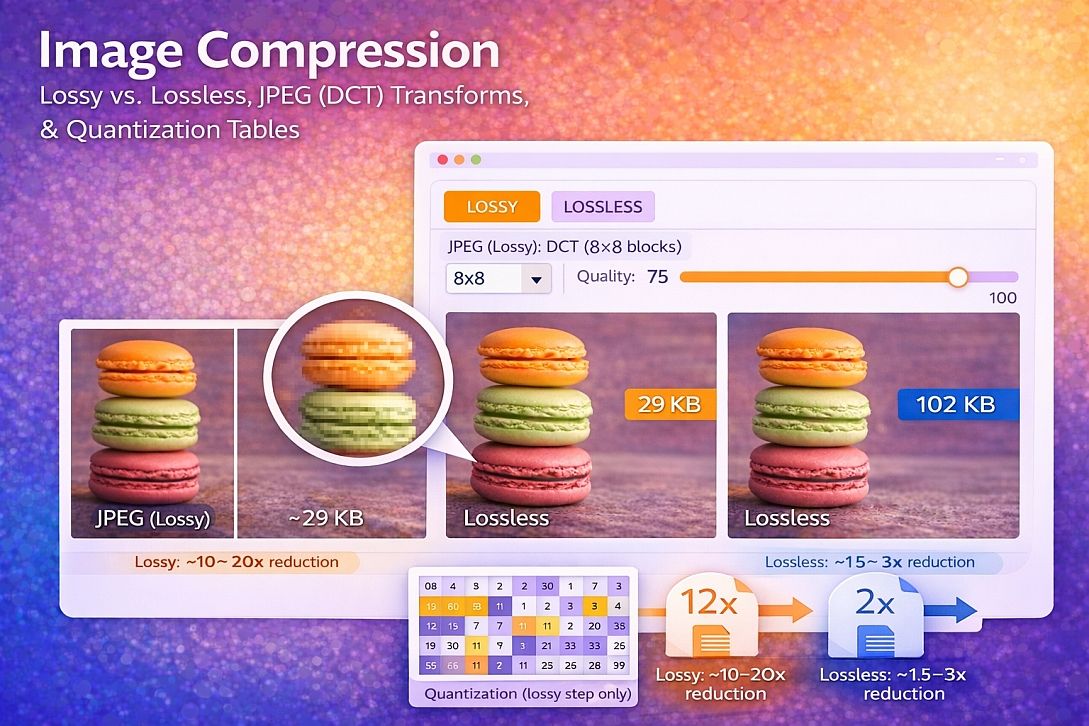
Image Compression: Lossy vs. Lossless, DCT Transforms & Quantization Tables
Digital image files contain redundant data. Compression removes that redundancy to reduce file size. Two fundamental approaches exist: lossless compression, which preserves every original pixel exactly, and lossy compression, which discards visually less important information.
Understanding the mathematical transformations behind each method allows informed tradeoffs between file size and image quality.
Summary of core compression concepts:
- Lossless compression: Pixel-perfect reconstruction using run-length encoding, Huffman coding, or DEFLATE. Best for diagrams, text, and pixel art.
- Lossy compression: Discards high-frequency information using the discrete cosine transform (DCT) and quantization. Best for photographs and complex scenes.
- Bit depth: Number of bits per color channel. Reducing from 8 to 6 or 5 bits per channel cuts file size with minimal visible difference.
- Chroma subsampling: Human vision perceives luminance more acutely than color. Storing color at half or quarter resolution saves space.
How JPEG Compression Actually Works
JPEG compression follows a sequence of mathematical operations. Each step discards specific types of information.
Step 1: Color space conversion. RGB converts to YCbCr. Y (luminance) carries brightness information. Cb and Cr (chrominance) carry color information. This separation allows different compression levels per channel.
Step 2: Chroma subsampling. The 4:2:0 subsampling scheme stores Cb and Cr at half the horizontal and vertical resolution of Y. The file size reduces by 50% before any other compression applies. The visual impact of photographs is minimal because human eyes detect brightness changes more readily than color changes.
Step 3: Block splitting. The image divides into 8x8 pixel blocks. Each block processes independently. This creates the characteristic 8x8 blocking artifacts at high compression levels.
Step 4: Discrete cosine transform (DCT). The DCT converts spatial data (pixel values) into frequency data. The top-left corner of each 8x8 block represents low frequencies (smooth gradients). The bottom-right corner represents high frequencies (fine details, noise, sharp edges).
Step 5: Quantization. Each of the 64 DCT coefficients is divided by a corresponding value in a quantization table and rounded to the nearest integer. High-frequency coefficients receive larger divisors, becoming zero more often. This is the primary lossy step. More zeros means better compression.
Step 6: Entropy encoding. The quantized coefficients are reordered in a zigzag pattern (low frequencies to high frequencies). Run-length encoding captures sequences of zeros. Huffman coding assigns shorter bit strings to common values.
Lossless Compression Methods Compared
| Method | Algorithm | Best For | Compression Ratio | Speed |
|---|---|---|---|---|
| PNG (DEFLATE) | LZ77 + Huffman | Diagrams, text, pixel art | 2:1 to 5:1 | Moderate |
| GIF (LZW) | Dictionary-based | Simple graphics, animation | 2:1 to 3:1 | Fast |
| WebP (lossless) | VP8 LZ77 + Huffman variants | General use | 2:1 to 6:1 | Moderate |
| AVIF (lossless) | AV1 entropy coding | General use | 2:1 to 8:1 | Slow |
| Run-length encoding | Consecutive identical pixels | Simple graphics with large, uniform areas | 1.5:1 to 4:1 | Very fast |
Lossless compression cannot achieve the same ratios as lossy compression because it must preserve every pixel exactly. A photograph compressed losslessly typically achieves a 1.5:1 to 3:1 reduction. The same photograph compressed lossily at acceptable quality achieves 10:1 to 20:1.
Five Practical Use Cases for Image Compression
E-Commerce Product Images
Specific constraints: Product photos must load quickly on category pages (under 100KB) but expand to high-quality zoom views (up to 500KB). Search engines penalize slow-loading pages. Customers expect crisp detail when zooming.
Common mistakes: Using the same compression level for thumbnails and zoom views. Thumbnails can tolerate higher compression. Zoom views require lower compression. Saving all images as JPEG without testing the transparency needs.
Practical advice: Generate two versions per product. Thumbnails: 500px width, JPEG quality 60-70, target 20-30KB. Zoom view: 1500-2000px width, JPEG quality 85-90, target 200-400KB. Use progressive JPEGs so images appear gradually as they load. For products on white backgrounds, consider PNG with 8-bit indexed color for smaller files than JPEG.
Social Media Graphics
Specific constraints: Platforms recompress uploaded images with their own settings. Over-optimizing before upload can cause double compression artifacts. Each platform has different recommended dimensions and file size limits.
Common mistakes: Uploading PNG files to platforms that convert to JPEG. The platform's JPEG compression applied to a PNG creates larger files and visible artifacts. Uploading images already compressed below platform thresholds.
Practical advice: Export at the platform's exact recommended dimensions. Use JPEG quality 85-90. Keep files under 1MB. For Instagram, use 1080x1080 or 1080x1350. For Twitter/X, use 1600x900. Let the platform recompress from a clean, high-quality original rather than uploading an already compressed file.
Website Hero Images and Backgrounds
Specific constraints: Hero images often span full viewport width (1920px+), but users see them for seconds. Largest contentful paint (LCP) metrics depend on these images. Modern formats (WebP, AVIF) offer better compression than JPEG.
Common mistakes: Serving the same 1920px image to mobile devices. Using JPEG exclusively without offering WebP or AVIF fallbacks. Compressing hero images as much as thumbnails.
Practical advice: Use responsive images with srcset. Serve 640px, 1280px, 1920px versions. Convert to WebP at quality 75-85. For browsers without WebP support, fall back to JPEG quality 80-85. Compress hero images to 100-200KB at 1920px. Test LCP impact using Chrome DevTools.
Archiving Personal Photo Collections
Specific constraints: Users want to preserve photos for years but reduce storage usage. Future use cases (printing, large displays) require retaining quality. Recompressing already compressed images causes generational loss.
Common mistakes: Compressing original camera files. Once detail is lost to lossy compression, it cannot be recovered. Converting between lossy formats (JPEG to WebP) applies a second lossy step.
Practical advice: Keep original camera files as masters. For active viewing libraries, create compressed derivatives. Use lossless compression for archives (PNG for screenshots, WebP lossless for mixed content). For archived JPEGs, do not recompress. Accept the existing file size. If storage is critical, convert to AVIF at quality 90-95 for a 30-50% size reduction with minimal visible loss.
PDF Documents with Embedded Images
Specific constraints: PDFs contain mixed content: text, vector graphics, and raster images. Compression must preserve text legibility while reducing image file size. Scanned documents present additional challenges.
Common mistakes: Applying the same compression to all images in a PDF. Text screenshots compressed with JPEG become unreadable. Over-compressing photos in medical or technical PDFs removes diagnostic detail.
Practical advice: Separate content types. Apply lossless compression (PNG, JBIG2 for black-and-white) to text and line art. Apply JPEG quality 80-90 to photographs. For scanned documents, use TIFF with LZW lossless compression for archival, JPEG quality 85 for distribution. Test text legibility at 200% zoom after compression.
Technical Comparison: Compression Formats and Tools
| Format | Compression Type | Transparency | Animation | Browser Support | Best Use Case |
|---|---|---|---|---|---|
| JPEG | Lossy | No | No | Universal | Photographs, complex scenes |
| PNG | Lossless | Yes (full alpha) | No | Universal | Diagrams, text, pixel art, logos |
| GIF | Lossless (per-palette) | Yes (1-bit) | Yes | Universal | Simple animations, low-color graphics |
| WebP | Both | Yes (full alpha) | Yes | 96%+ | General web use, photographs |
| AVIF | Both | Yes (full alpha) | Yes | 80%+ | Next-generation web images |
| JPEG XL | Both | Yes (full alpha) | Yes | 30%+ | Emerging standard, archival |
For users who need immediate results without installing software or learning encoding parameters, online image compressor tools implement the same DCT-based JPEG compression and lossless PNG optimization described here. These browser-based tools are suitable for single images, quick testing of different quality levels, and situations where dedicated imaging software is unavailable. The tradeoff is reduced control over chroma subsampling and quantization tables compared to professional applications. A functional example is the Image Compressor, which provides adjustable quality settings, real-time preview of file size reduction, and multiple format output options.
Advanced Techniques: Perceptual Optimization & Quantization Tuning
Quantization tables determine which frequencies survive compression. Standard tables favor low frequencies. Custom tables can emphasize specific detail types. For product photography, preserving edge detail while smoothing texture reduces visible artifacts. For portraits, preserving skin tone gradients while discarding fine hair detail improves compression.
Two-pass encoding analyzes the image before compression. The first pass identifies complex regions requiring more bits. The second pass allocates bits accordingly. Variable bitrate (VBR) encoding produces smaller files than constant bitrate (CBR) at equivalent perceived quality. Most web tools use CBR for speed; advanced encoders like mozjpeg implement VBR.
Psychovisual optimization exploits human visual system limitations. The eye detects contrast changes more readily in bright areas than in dark areas. High frequencies are less visible in dark regions. Adjusting quantization per luminance value improves perceived quality at the same file size.
Common Pitfalls and Corrected Misconceptions
Misconception: Saving a JPEG as JPEG multiple times degrades quality each time. Correct. Each re-encode applies DCT and quantization again. Edges accumulate artifacts. Always edit from the original or use a lossless intermediate format (PNG, TIFF) between editing sessions.
Misconception: PNG is always better than JPEG for web images. False. PNG is lossless and produces large files for photographs (5-10MB for a single photo). JPEG at quality 85 produces a 200KB file with no visible difference. Use PNG only for images with sharp edges, text, or transparency.
Misconception: 100% JPEG quality is lossless. False. JPEG quality 100 still applies chroma subsampling and DCT quantization. It uses the smallest quantization divisors, but information is still discarded. For true lossless, use PNG or JPEG XL lossless mode.
Misconception: Compression artifacts are always visible at 100% zoom. False. Many artifacts appear only when zooming. Judge compression at final display size. An image viewed on a phone at arm's length can tolerate much higher compression than the same image viewed on a 27-inch monitor.
Misconception: Reducing image dimensions compresses the file. Incorrect. Resizing reduces pixel count, which reduces file size. Compression changes encoding efficiency without changing dimensions. Both operations reduce file size, but through different mechanisms. Apply resizing first, then compression.
Step-by-Step Decision Method for Image Compression
Step 1: Determine the output use case. Web display, print, archival, or social media. Each has different quality and size requirements.
Step 2: Select the format based on image content. Photographs and complex scenes: JPEG or WebP lossy. Diagrams, text, screenshots: PNG or WebP lossless. Logos with transparency: PNG. Simple animations: GIF or WebP animation.
Step 3: Choose a compression approach. Lossless for archival or text-heavy images. Lossy for web delivery or photographs.
Step 4: Set the quality parameter. Start at 85 for JPEG, 80 for WebP. Decrease in increments of 5 until artifacts appear. Increase only if file size permits.
Step 5: Test chroma subsampling. 4:2:0 works for most photographs. 4:4:4 (full color resolution) preserves text and edges but increases file size by 20-30%.
Step 6: Compare original and compressed at the final display size. View on the target device if possible. Zoom to 100% and also view at actual display scale.
Step 7: Batch apply settings. Once validated on representative samples, apply identical settings to similar image groups.
Step 8: Serve responsive versions. Create multiple resolutions. Use srcset or picture elements for web delivery.
Technical Answers to Specific User Questions
What is the difference between quality 80 and quality 90 in JPEG? Quality 90 uses smaller quantization divisors, preserving more high-frequency detail. File size is typically 1.5-2x larger than quality 80. The visual difference is often invisible on web displays. Quality 80 is the standard web tradeoff point.
Why does my PNG screenshot compress poorly? Screenshots contain gradients, many unique colors, and anti-aliased text. Convert to 8-bit indexed PNG with 128-256 colors before compression. Use pngquant for intelligent palette reduction. File size can drop by 70% with no visible difference.
Can I compress images without losing quality? Lossless compression reduces file size without changing pixels. Typical reduction is 20-40% for PNG and 10-20% for JPEG (recompressing JPEG losslessly is not possible; you must start from an uncompressed original).
What is the smallest file size for a high-quality web image? A 1200x800 photograph at JPEG quality 75-80 typically compresses to 100-200KB. This loads in under 0.5 seconds on broadband and looks sharp on most displays. For thumbnails (300x200), target 10-20KB.
How does WebP compare to JPEG for photographs? WebP at quality 80 produces files 25-35% smaller than JPEG at equivalent visual quality. WebP also supports transparency and animation. Browser support is 96%+ globally. The only reason to use JPEG is compatibility with very old systems.
Related Tools on Toolonic:
- Image Compressor – Apply the methods above instantly in your browser
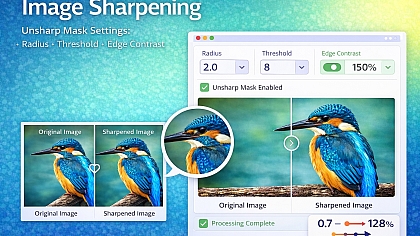
- Image Sharpener – Compensate for detail loss from high compression
- Image Enhancer – Adjust contrast and exposure before or after compression
LEAVE A COMMENT
Recent Posts

0.0497